
Damage meter for World of Warcraft
Peelometer
Damage, healing, deaths and more, in meter windows you can make your own. Built on Blizzard's own meter data, with hover details, a breakdown for every spell and every fight saved for later.
Free · World of Warcraft Retail
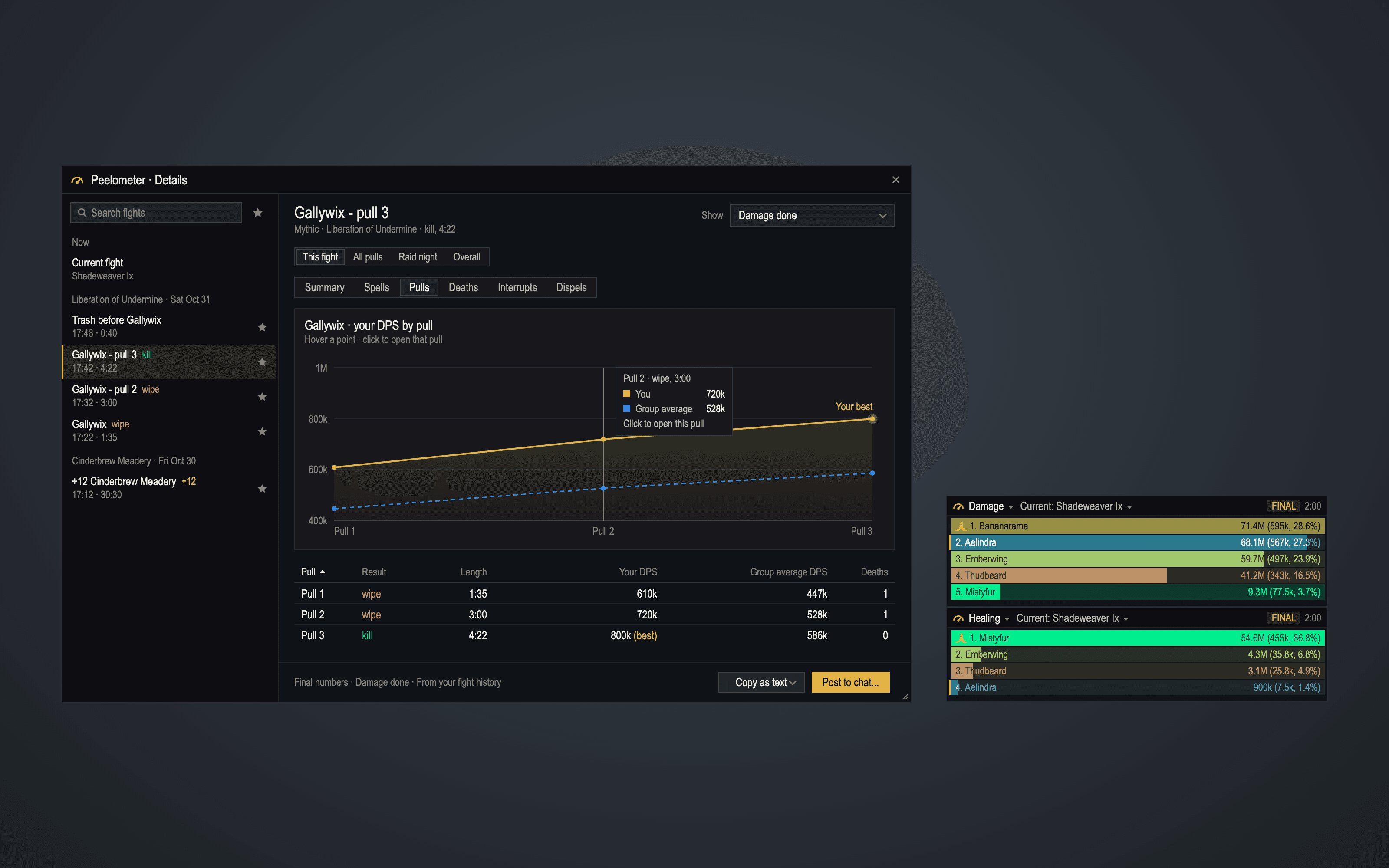
Eleven metrics
from Blizzard's own meter
Any number of windows
each with its own look
Every fight saved
history, bests and reports
Private
nothing leaves your PC
Features
Meter windows
As many windows as you want.
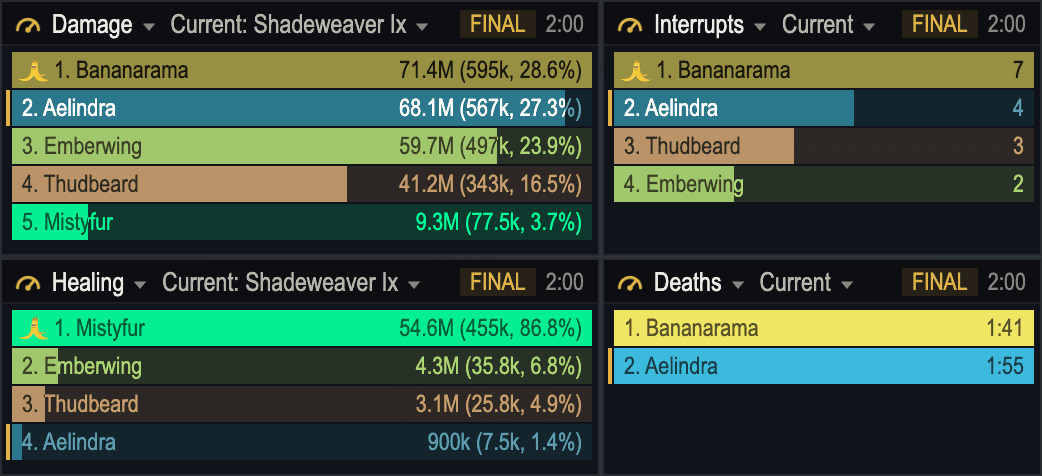
Each window has its own metric, fight, theme, bar style and size. Snap them together, move them as a group, or stack several metrics in one window as tabs.
- Damage, DPS, healing, HPS, absorbs, interrupts, dispels, damage taken, avoidable damage, deaths and enemy damage taken
- Current fight, Overall, any past fight, a whole M+ run or a raid night
- Show a window only in combat, in groups, raids, M+ or PvP, and fade it out of combat
- Presets for solo, dungeons, raid healing, raid DPS and PvP, or save your own
Hover & breakdown
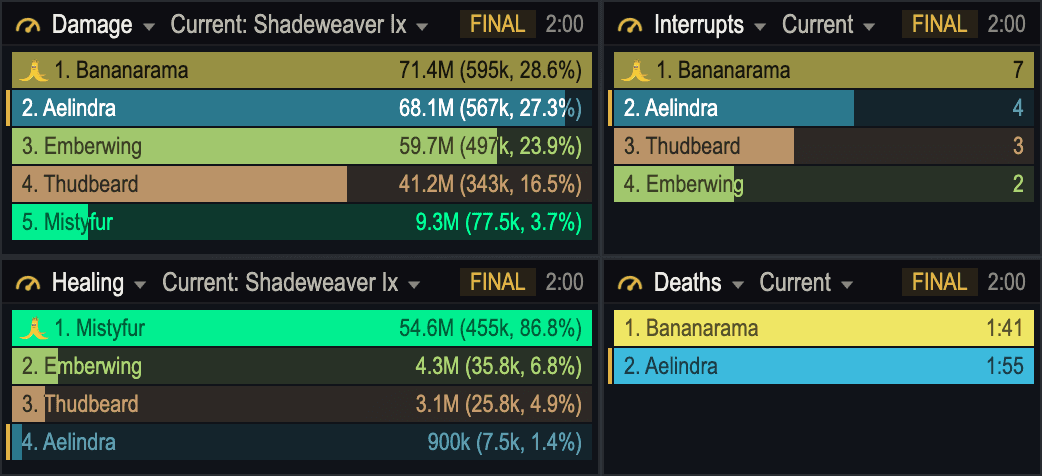
Every spell, one click away.
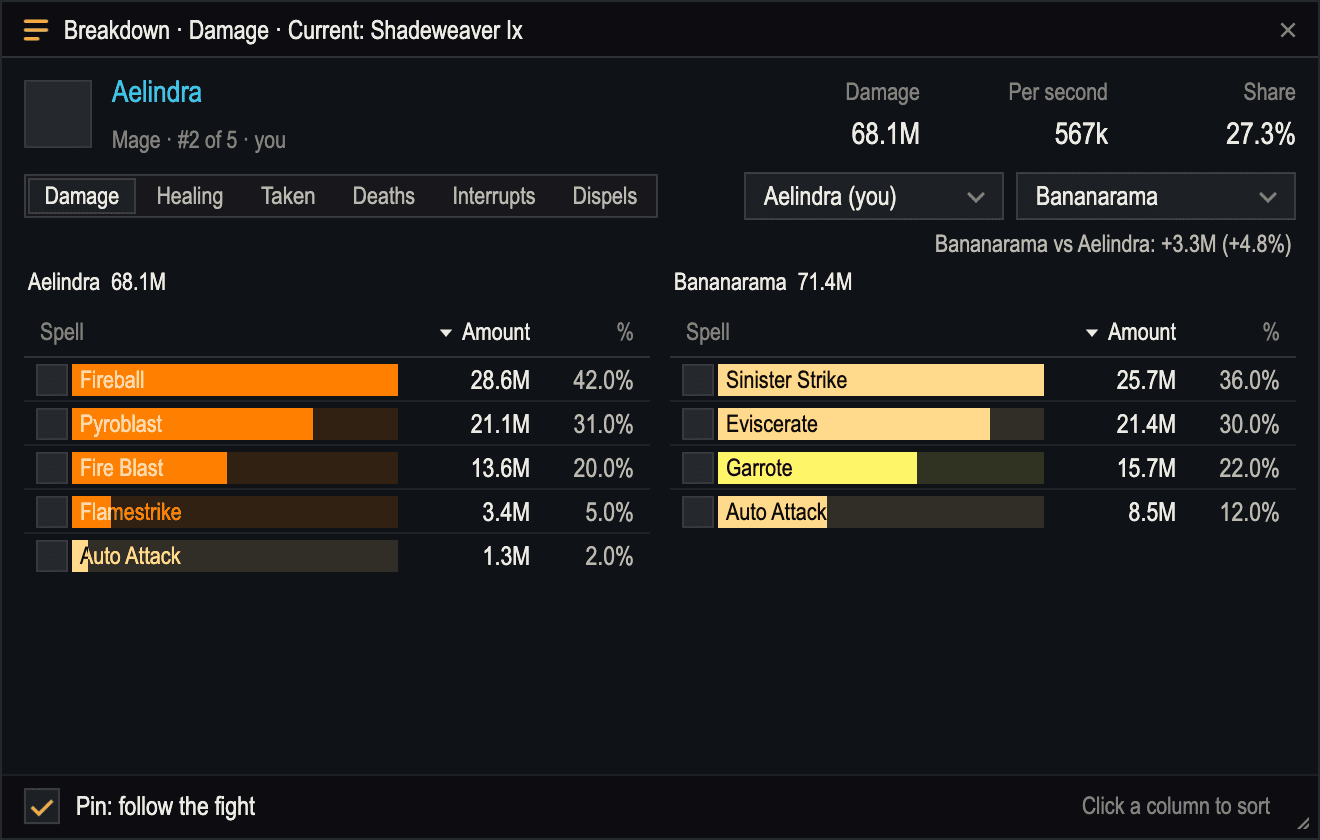
Hover a bar for that player's totals and top spells. Click it for the full breakdown, or put two players side by side.
- Strongest and weakest spells as bars, pets, overkill, avoidable and deadly hits
- Pick which sections the hover shows, in what order, and when it shows
- Breakdown with amount, per second, percent, overkill, pet and target for each spell
- Pin a breakdown and it follows the fight as it happens
Fights & history
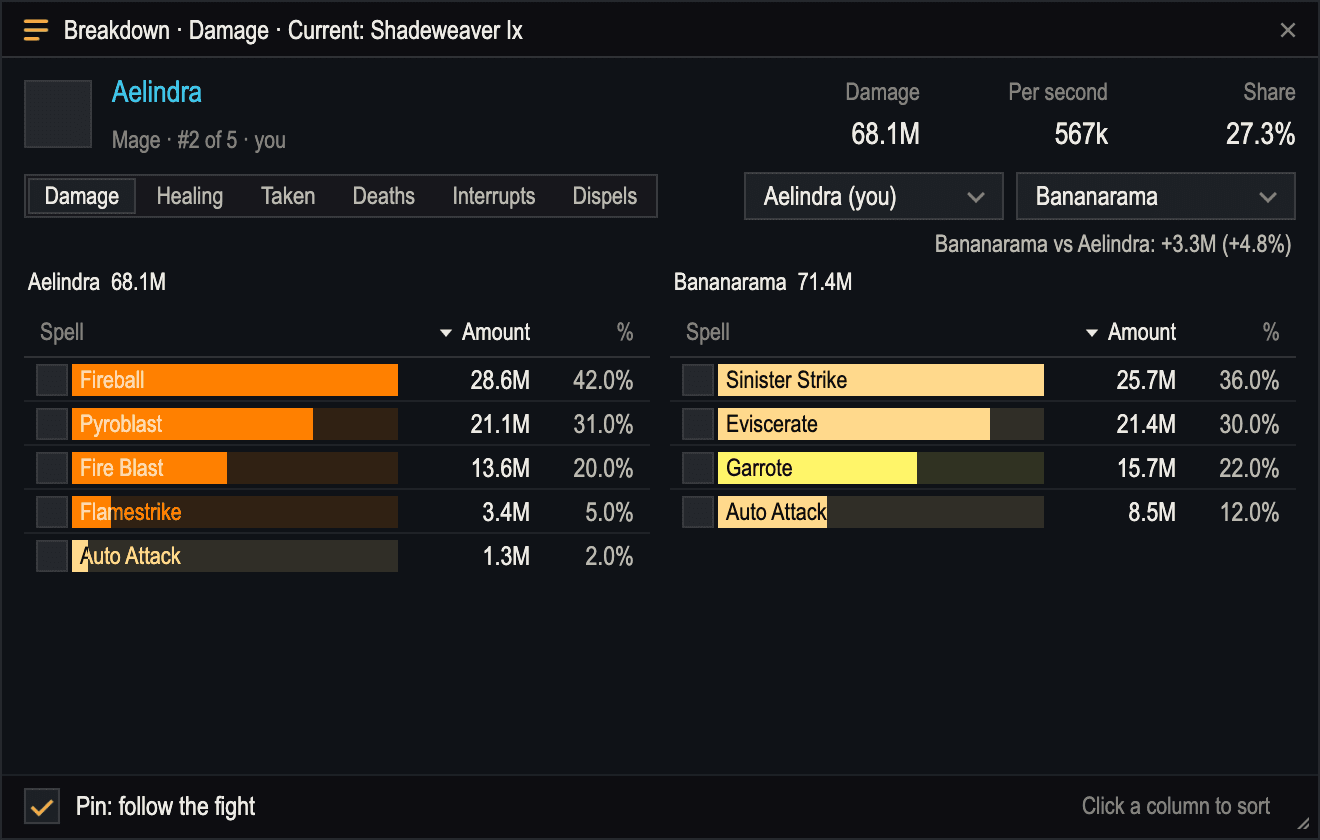
Every fight, kept and named.
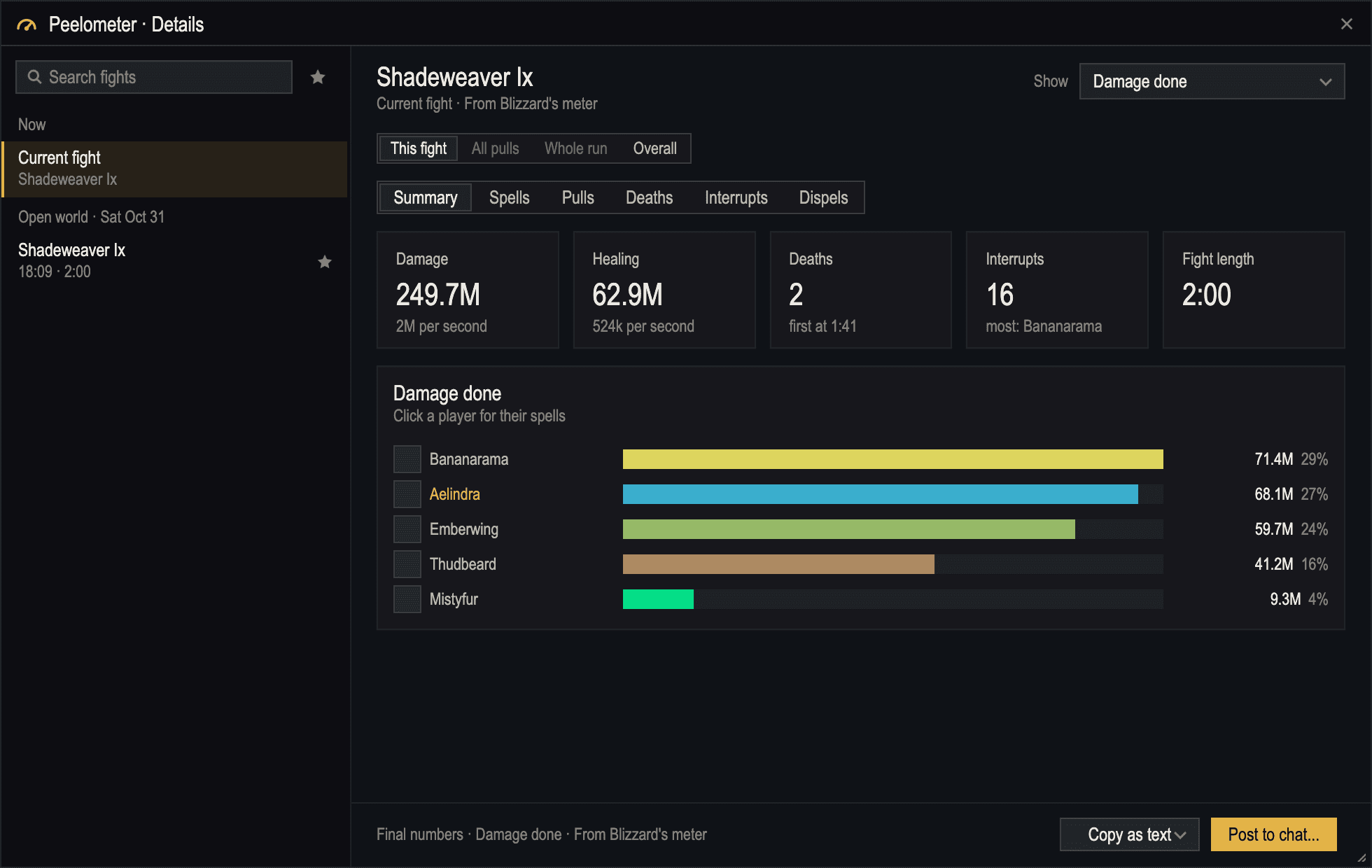
Once a fight's numbers are final, Peelometer saves it: named by boss, key level or zone, with pull numbers. The details window shows any of them.
- Summary tiles, player and spell charts, deaths with Blizzard's recap, interrupts and dispels
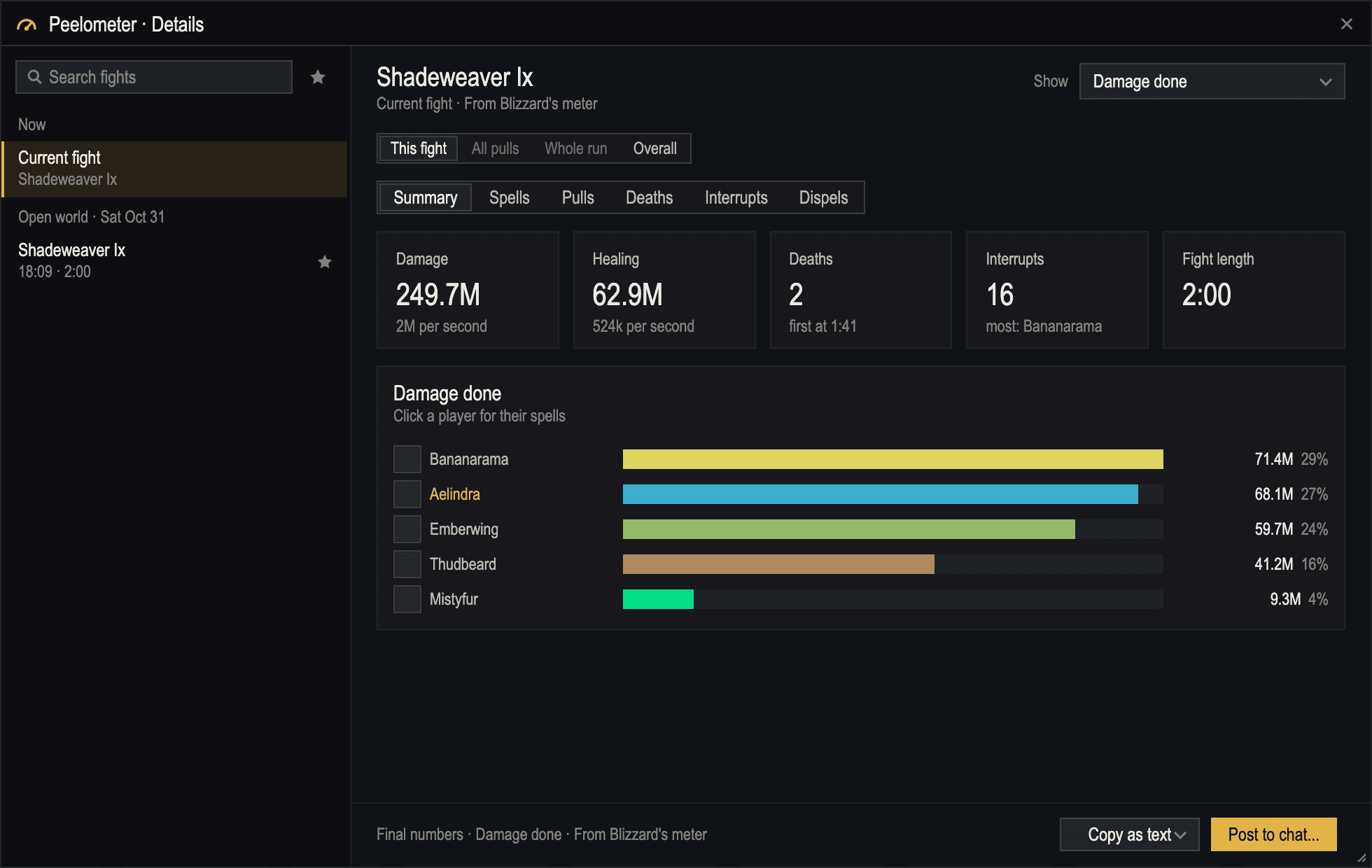
- Every pull of a boss on one chart, with your best marked
- Personal bests per boss and per dungeon
- Favorites are never deleted; share a fight as a string another player can import
Reports
Post results without spamming.
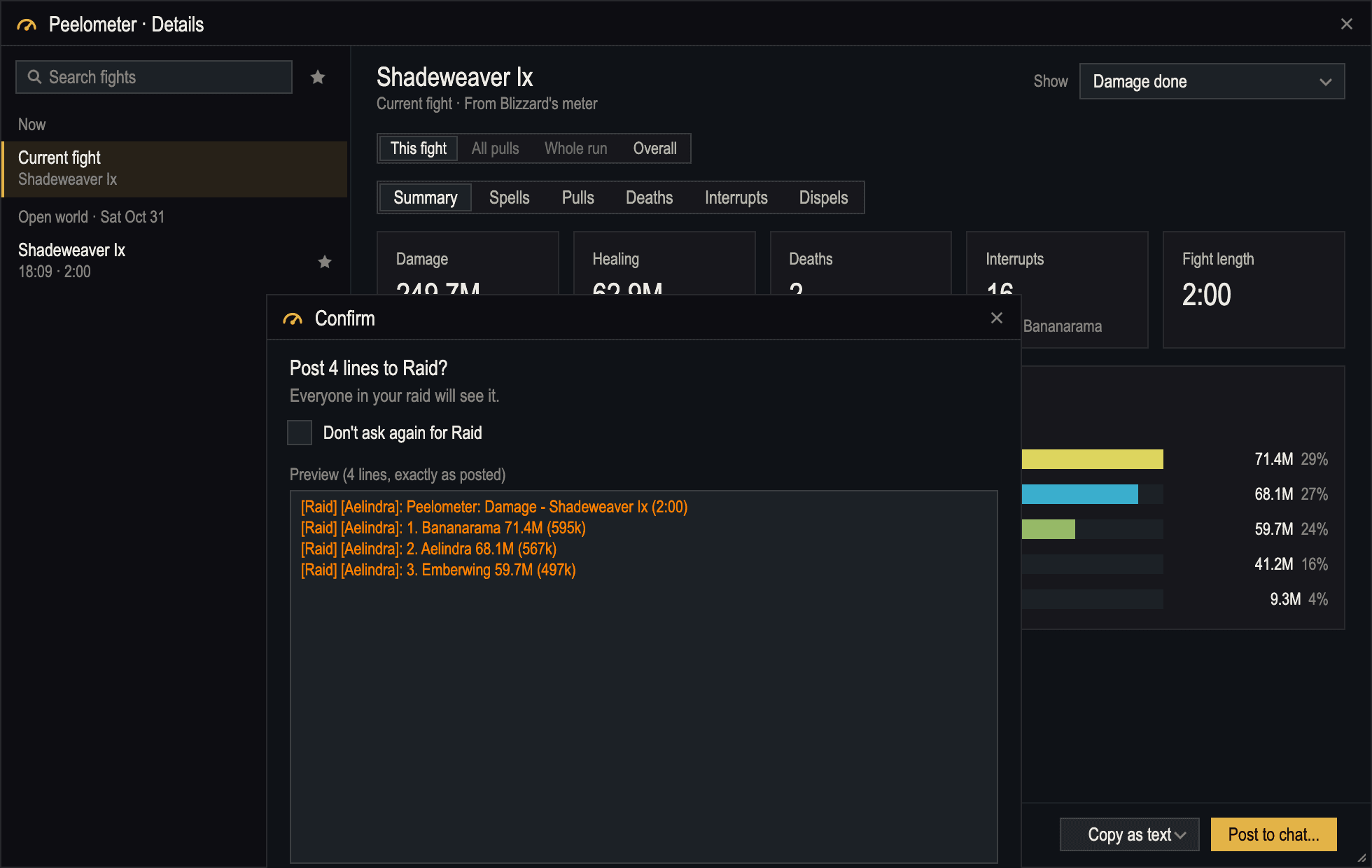
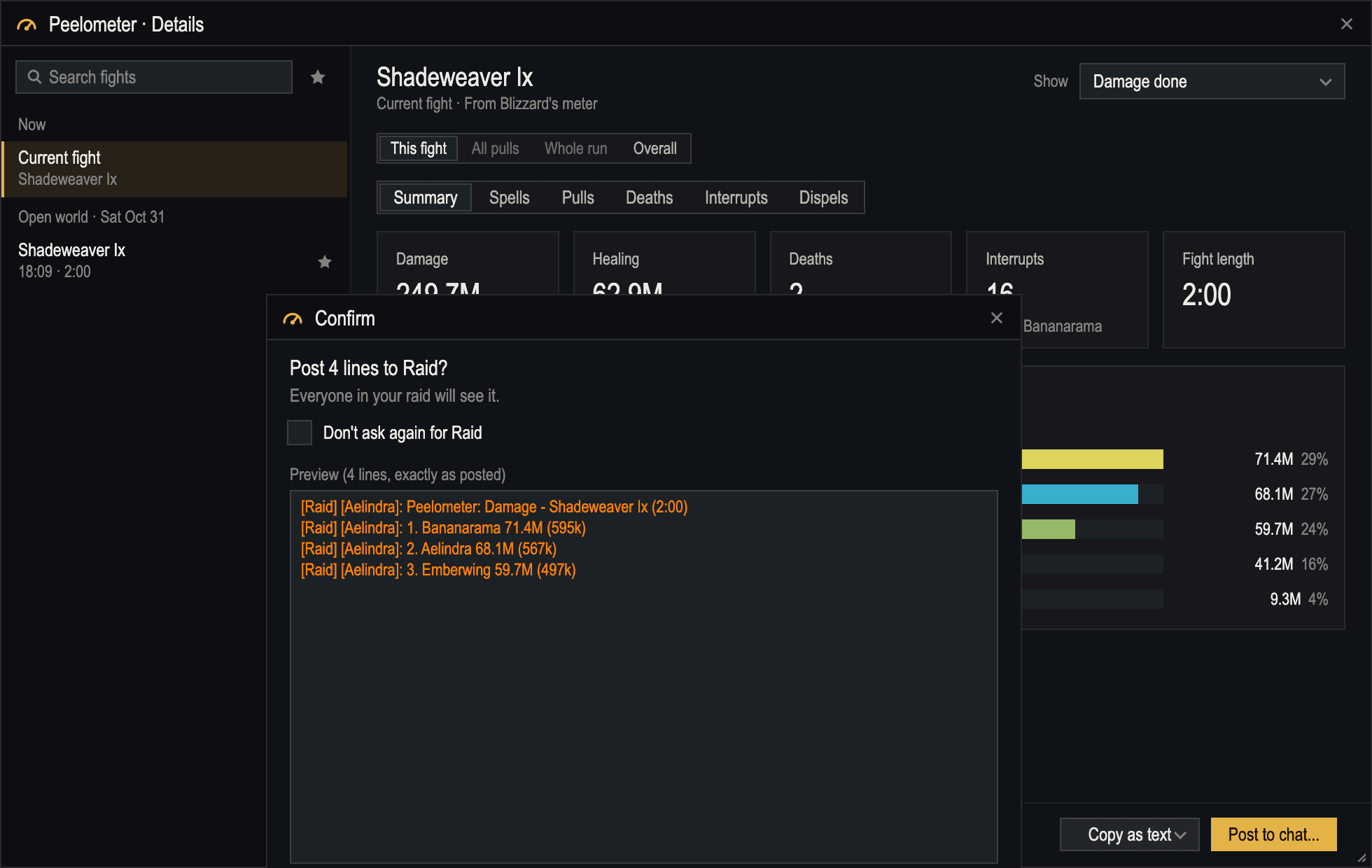
Pick the channel, see the exact lines first, then confirm. Or copy the report as text and paste it anywhere.
- Party, instance, raid, guild or say, after combat only
- Short, top N or full format
- Turned off while chat is locked in boss fights and keys, with a note saying why
- Optional: offer to post the top players after a kill (still confirmed)
Bar styles
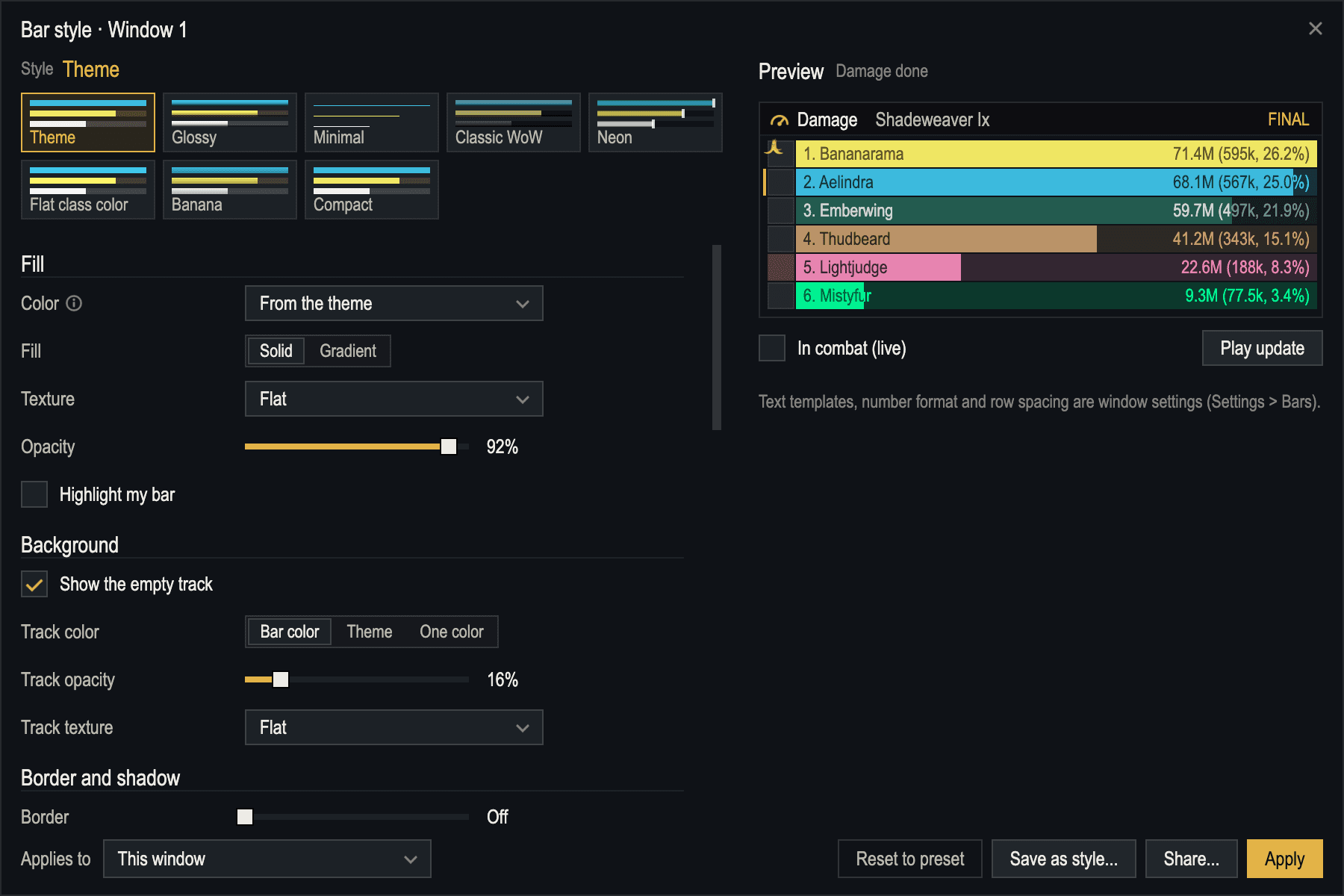
Bars that look the way you like.
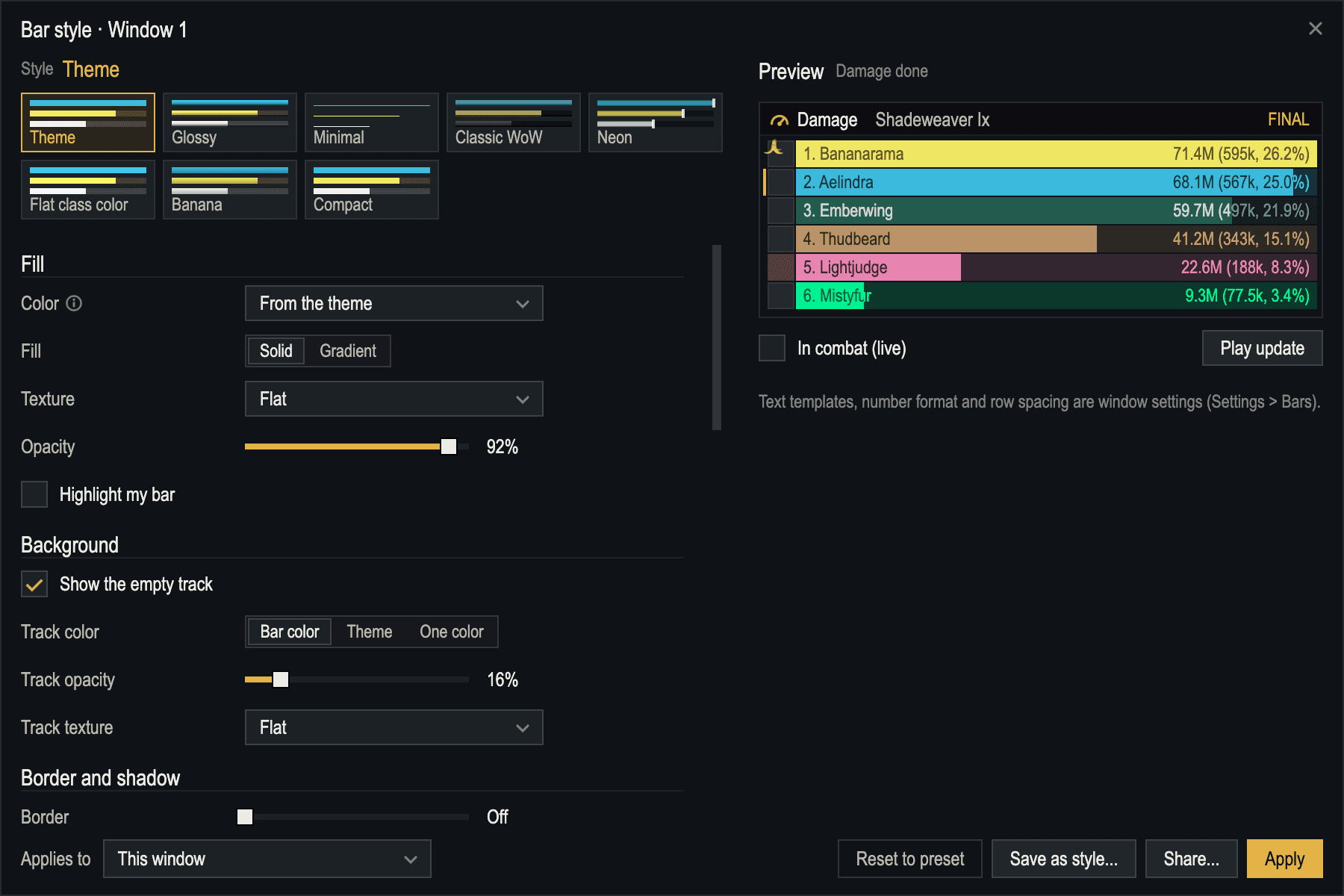
Start from one of eight styles and change anything, with a live preview. Set a style for every window, one window or one metric.
- Fill by class, spec, role, rank or one color; solid, gradient or texture
- Borders, rounded or pill corners, glow, icons, a crown for #1 and a marker for you
- Text templates like {rank}. {name} and {amount} ({perSecond}, {percent})
- Text takes a shade of the bar's own color, so it always reads
Settings
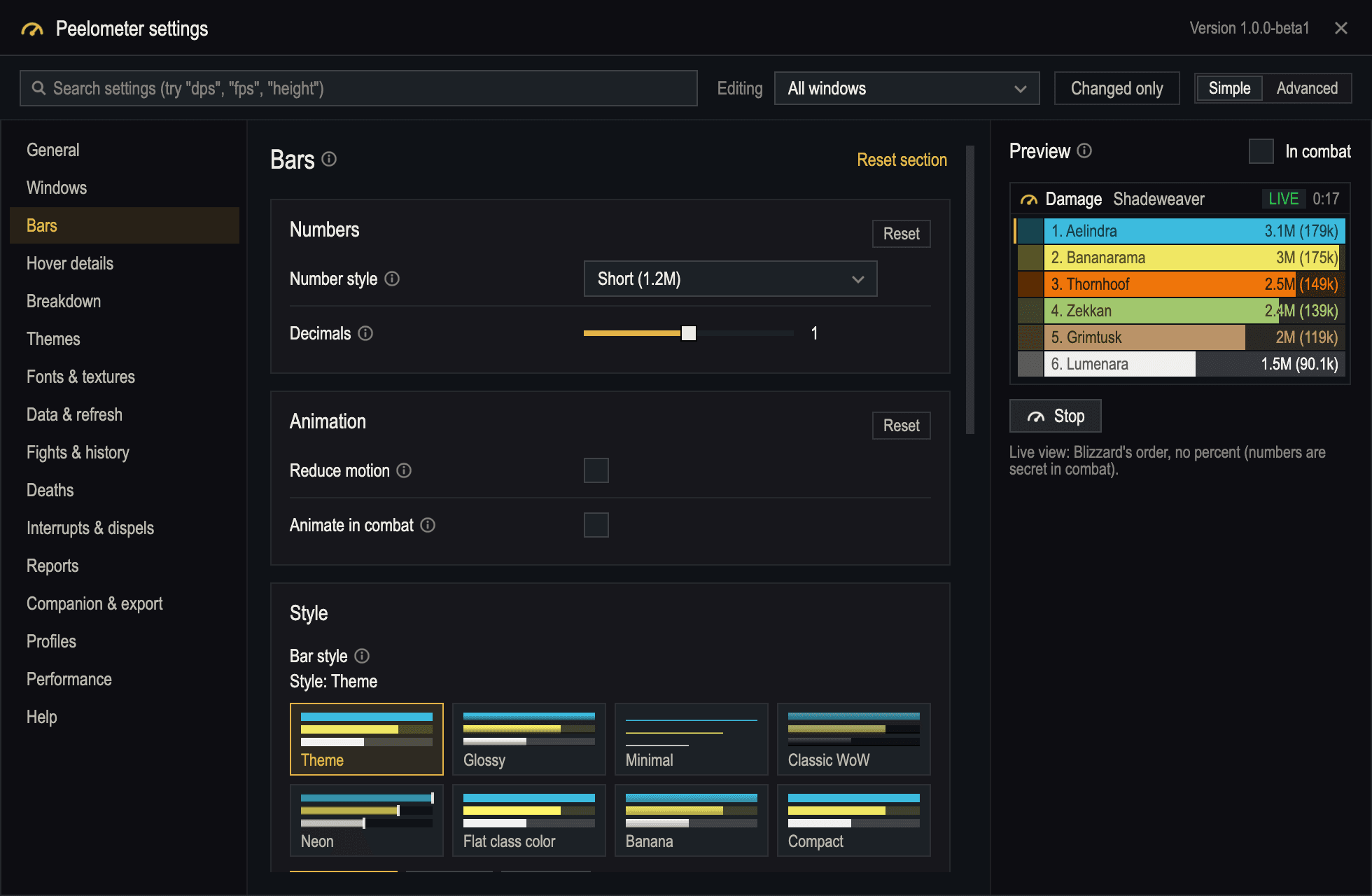
Lots of settings. Easy to find.
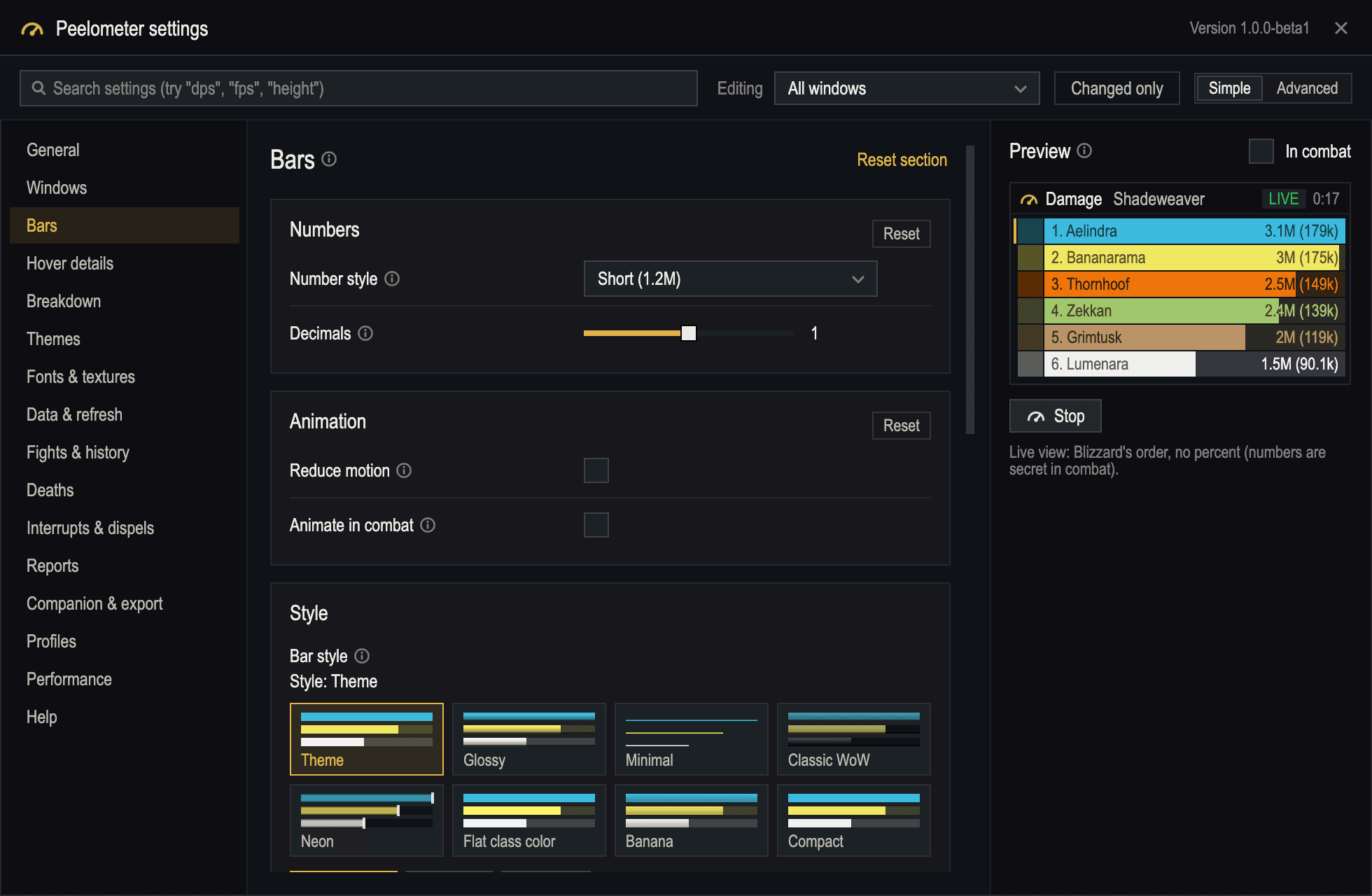
169 settings in one window with search, info tips and a live preview. Change every window at once or just one.
- Search finds settings by any word: "dps", "fps", "banana"
- Changed only, reset per section, Simple and Advanced
- Profiles shared, per character, per spec or per role
- A cost readout shows what Peelometer takes per refresh
What's possible in 12.x
Live in combat. Final right after.
Since patch 12.0, addons can't read the combat log. Every Retail meter now shows Blizzard's own meter data, and during combat those numbers are secret: an addon may show them, but not do math with them. Peelometer is built around that, and says so on every window.
| What | In combat | After combat | AppCompanion app |
|---|---|---|---|
| Damage, healing, absorbs, DPS and HPS bars | Yes | Yes | Yes |
| Interrupts and dispels count | Yes | Yes | Yes |
| Deaths, with Blizzard's death recap | Yes | Yes | Yes |
| Spell breakdown per player | Yes | Yes | Yes |
| Percent of total or of top, re-sorting, your own per-second | No | Yes | Yes |
| Interrupts caused by stuns or knockbacks | No | No | Est.Estimated |
| Overhealing, crits, buff uptime, crowd control | No | No | Yes |
- LIVEIn combat you see Blizzard's numbers in Blizzard's order, updating as you fight. Bars, amounts and per-second all work.
- FINALA few seconds after the fight the numbers turn normal. Percentages, sorting, merged pets, your own per-second basis and history all kick in.
- NEVEROverhealing, friendly fire, healing taken, threat, crits and buff uptime aren't given to addons at all. The Companion app reads them from the combat log file instead.
Over 40 themes
Bananas optional. Mostly.
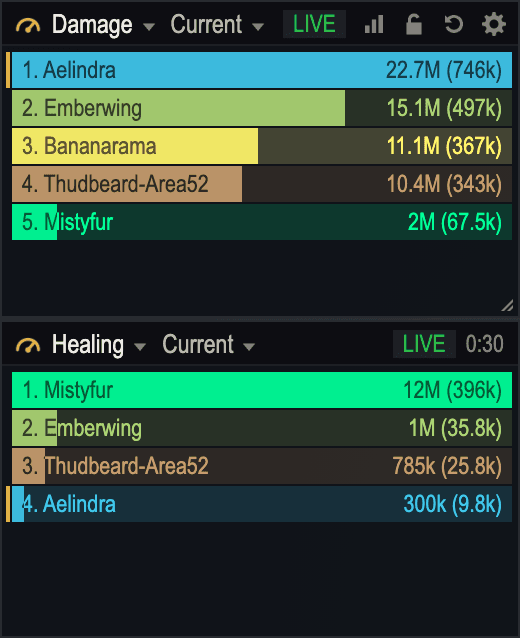
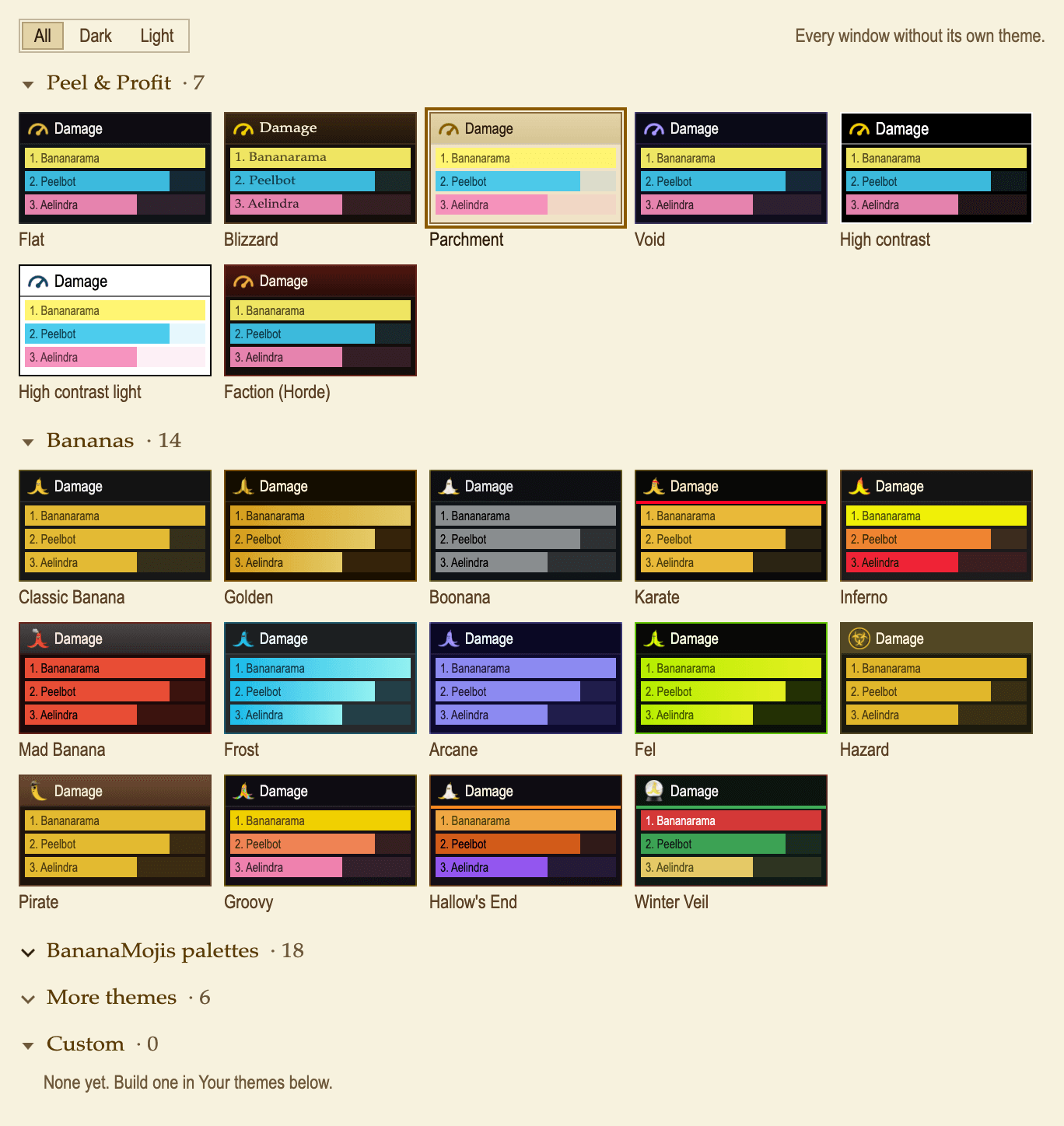
Peel & Profit's six themes, twelve banana themes with their own art, the BananaMojis palettes in dark and light, editor classics like Dracula and Solarized, or your own theme from 8 colors. Every window can have its own.
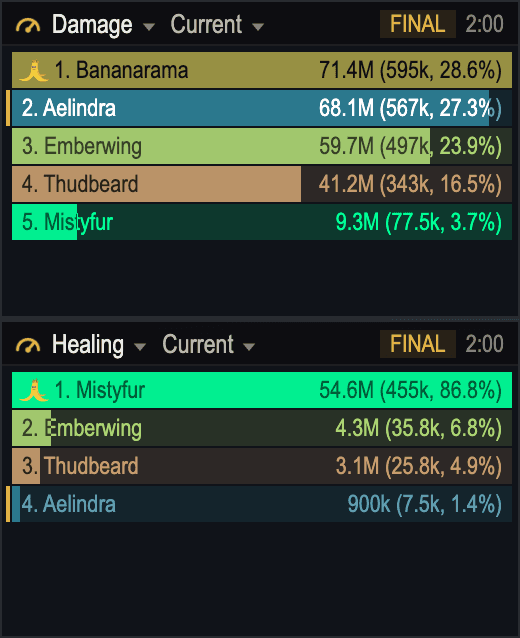
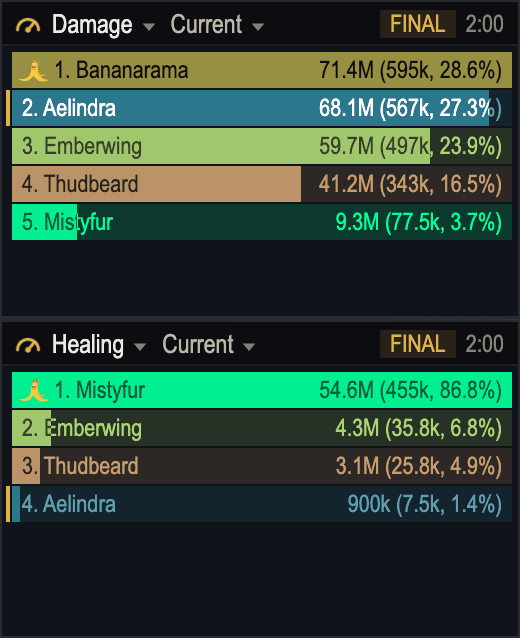
The default: graphite windows, class-colored bars.
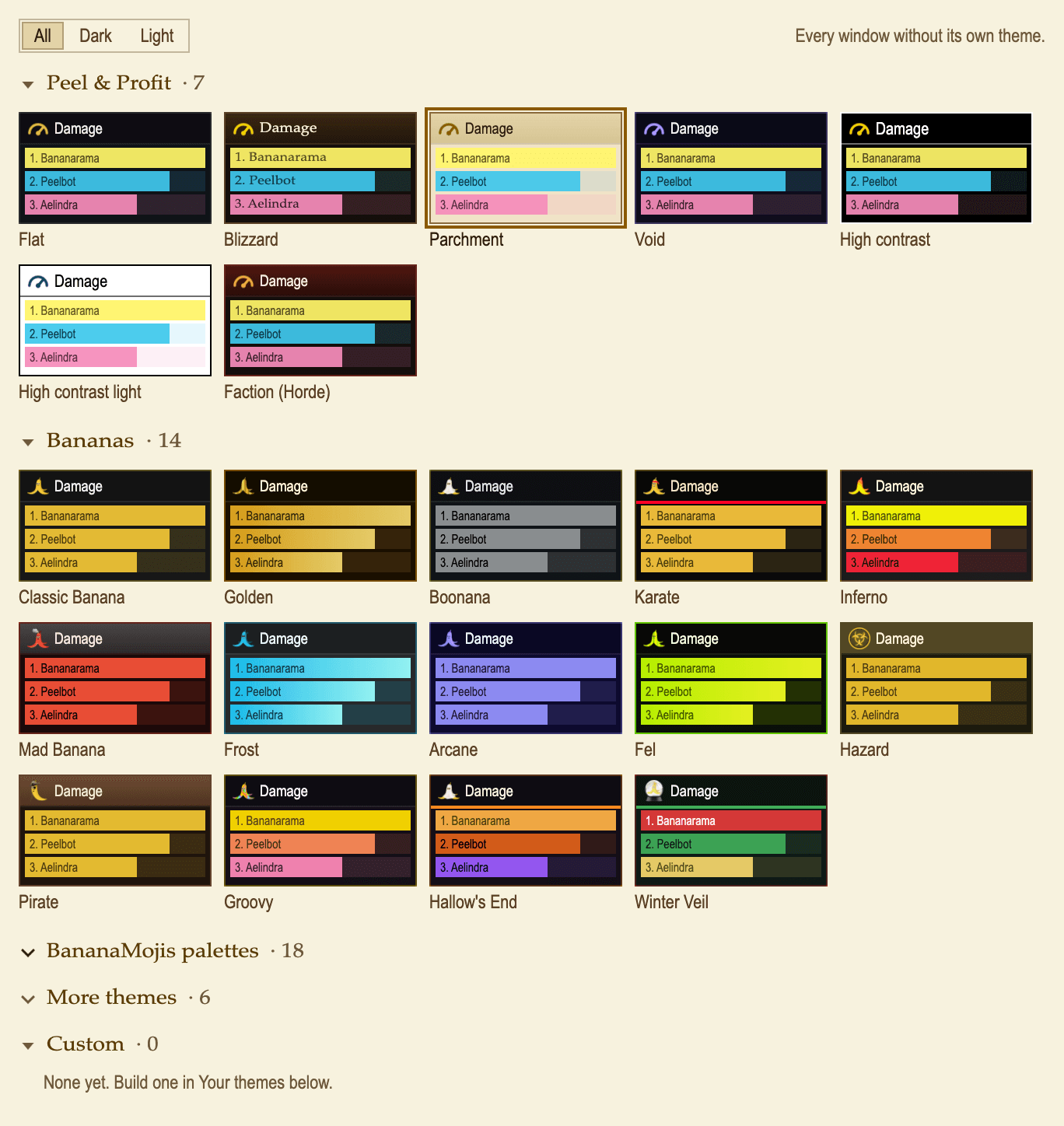
The theme picker: every tile is a little meter in that theme.
And more
The small things, done right.
Top 3 and HUD
A small Top 3 window or one line with your rank and DPS.
Personal mode
One bar per spell for you, live in combat.
Pull vs best
After each boss pull: your DPS against your best on that boss.
M+ summary
Damage, healing, interrupts, deaths and avoidable damage when a key ends.
Death alerts
A sound, text on screen or a flash on the row. Never chat spam mid-fight.
Share a fight
Send a fight as a string. Another Peelometer player can open it.
Layouts
Save your windows as a preset and share it, or start from Solo, Dungeon or Raid.
Data Broker
Your DPS and rank on Titan Panel, ElvUI and other panels.
Blizzard's meter
Hide its window with one click. Its data stays on, because Peelometer reads it.
Light on your frame rate
One data call per metric, shared by every window. Hidden windows pause.
Reduce motion
Smooth fills and rank slides, or none at all. Your choice.
What's new in game
A What's new window after each update, and the full changelog with /pm changes.
Companion app
The rest of the story, on your desktop.
The free 1svc Addon Utils app has a Peelometer page. It reads the fights Peelometer saves, and the combat log file the game still writes, so it can show what no addon can see in game. Optional: Peelometer works fine without it.
About 1svc Addon UtilsSaved fights
Every fight Peelometer saved, with filters by instance, boss, date and character. Export as CSV or JSON.
Compare and trends
Pull 3 against pull 7, and your DPS on a boss over weeks.
From the combat log
Overhealing, crits, buff uptime and crowd control, matched to the same fights.
Stops by stuns and knockbacks
A best guess from the log, labeled estimated, with each credited stop listed so you can check it.
Second-screen meter
A live meter a few seconds behind the game.
Combat logging
Peelometer can switch logging on in raids, M+, dungeons or PvP. Large old logs can be zipped or deleted, after asking.
Stays on your PC
Nothing is uploaded. The app reads files on your computer.
What's new · v1.0.0-beta1Beta
The highlights.
First beta (World of Warcraft Retail 12.1.5).
Also included
42 more features
Getting started
- A welcome card on first login: what Peelometer is, what a meter can do in 12.x, and a choice to hide Blizzard's meter window.
- /pm, /peelo, /damage and /dmg all work. /pm opens settings and /pm help lists every command.
- Hide Blizzard's meter window with one click (its data stays on, Peelometer reads it). If its data is switched off, the windows say so and turn it back on for you.
Meter windows
- As many windows as you like, each with its own metric, fight, theme, bar style, size and hover details. Damage and Healing to start with.
- Title bar with the metric and fight pickers, LIVE / FINAL badge, fight timer, and reset, report, settings and lock buttons. Each button can be hidden, and the title bar can show only on mouseover.
- Max rows or fill the window, grow up or down, scroll with the wheel, and always show your own row at the bottom when you're out of view.
- After combat: total output (damage plus healing), healing plus absorbs, overkill, avoidable damage share and deadly hits taken.
Layout & visibility
- Show each window always, in combat, in a group, in an instance, raid, M+ or PvP, or never. Hide in pet battles, vehicles and cutscenes, fade out of combat, hide when empty.
- Lock windows, make them click-through in combat or always, and hold a key to use them while locked. Scale, opacity and strata per window.
- Window presets (Solo, Dungeon, Raid healer, Raid DPS, PvP) and your own presets: save your windows, apply, rename, update, share as a string or import. /pm presets.
- Minimap button, an entry in the addon button next to the minimap, and a Data Broker launcher.
Bars & text
- Text templates for both sides of a bar with tokens like {rank}, {name}, {amount}, {perSecond}, {percent} and {deaths}. Text takes a shade of the bar's own color so it always reads.
- Numbers as 1.2M, 1,234,567 or 1234k, with decimals and separator, in combat too.
- Five fonts included (Inter, Roboto Condensed, Bebas Neue, JetBrains Mono, Montserrat), the game fonts, bar textures, LibSharedMedia fonts and textures, and your own files.
- Smooth fills, rank slides and update flashes, with Reduce motion and Animate in combat switches.
- Class, spec or role colors, a colorblind-safe class palette, and readable name colors when class colors are off.
Themes
Hover details & breakdown
Fights & history
- After combat: percent of the group or of the top player, per second by Blizzard, fight length or time alive, pets merged or split, and decimals per metric.
- Reset rules for entering an instance, joining or leaving a group, with a confirm step. Filters for short or tiny fights.
- Personal bests per boss and per dungeon. /pm bests.
- Share a fight as a string another Peelometer player can import and view.
Details window & reports
Deaths, interrupts & dispels
- Death log with time, player, killing blow and overkill, and Blizzard's full recap one click away.
- Optional death alerts: a sound, text on screen or a flash on the row, and an after-combat summary in your chat window.
- Interrupt and dispel counts with which spells were used. Settings explain why stops by stuns and knockbacks aren't in the game.
Extras
- A small Top 3 window or a one-line HUD with your rank and DPS.
- Personal mode: one bar per spell for you, live.
- After each boss pull, your DPS this pull against your best on that boss.
- M+ run summary when a key ends: damage, healing, interrupts, deaths and avoidable damage, plus gold per run when Peel & Profit is installed.
- A Data Broker feed with your DPS and rank for Titan Panel, ElvUI and other panels.
- Opt-in avoidable damage board after a fight, with a banana per rank. /pm shame.
- A personal bests window (/pm bests) and "Share this fight" / "Import a fight" in the window menu.
Companion app
Settings & profiles
Help & feedback
- Settings > Help explains what a meter can and can't see in 12.x.
- Report a bug or request a feature in game with /pm bug or /pm feature. 1svc Addon Utils sends it, or copy a link to the website form.
- A What's new window after each update, the full changelog with /pm changes, and a page under Esc > Options > AddOns.
- Tester mode (/pm tester): a checklist of things to try, with Works, Broken and Skipped, and an export to paste into a bug report.
Get started
Up and running in a minute.
- 1
Install and log in
Two windows, Damage and Healing, appear at the bottom right. A welcome card explains the rest.
- 2
Decide on Blizzard's meter
Keep both, or hide Blizzard's window from the welcome card. Its data stays on either way.
- 3
Make it yours
Type /pm for settings: themes, bar styles, more windows or a preset layout.
- 4
Fight something
Bars fill while you fight (LIVE) and switch to FINAL a few seconds after. Hover or click a bar for details.
Help test the beta
Type /pm tester for a checklist of 48 things to try, one per feature, with what should happen. Mark each one Works, Broken or Skipped, then paste the export into a bug report here.
- /pm /peelo /damage /dmg
- Open or close settings
- /pm help
- Every command
- /pm details
- The details window: any fight, pull or run
- /pm report [lines]
- Post the current window to chat (asks where)
- /pm history
- Saved fights; export or import a fight
- /pm bests
- Your personal bests
- /pm presets
- Window presets and your own layouts
- /pm theme <name>
- Switch theme
- /pm log
- Combat logging on or off (for the Companion app)
- /pm changes
- What's new and the changelog
- /pm tester
- Tester mode and its checklist
- /pm bug /pm feature
- Report a bug or request a feature
All four names work the same way, e.g. /dmg details.
Settings reference
Every setting, explained.
The same list as the in-game settings window, with defaults. Settings marked per window can differ for each window.
GeneralTurn Peelometer on or off, Blizzard's meter, minimap and slash commands.9
Peelometer
- Enable Peelometer
- Turns every meter window and all refreshing on or off, without uninstalling. Saved fights stay.Default: On
Welcome & What's new
The welcome card from your first login and the notes for each update.
- Welcome card
- Shows the card from your first login again: what Peelometer is and Blizzard's meter choice.
- What's new
- New features of this version and the full changelog. /pm changes opens it too.
- Tell me after updatesaccount-wide
- After an update, a toast and a chat line say so. Click the toast to see what's new.Default: On
Blizzard's meter
Peelometer reads Blizzard's meter data, so the meter itself must stay switched on in Options > Gameplay. Hiding only hides its window.
- Hide Blizzard's meter window
- Hides Blizzard's own meter window. Its data stays on, because Peelometer reads it.Default: Off
Buttons
- Minimap buttonaccount-wide
- Button on the minimap: left-click shows or hides the windows, right-click opens the settings.Default: On
- Addon compartmentaccount-wide
- Lists Peelometer in the addon menu under the minimap.Default: On
Data broker
Your rank and DPS for info bars like Titan Panel or ElvUI data texts.
- Data broker feed
- "Peelometer DPS": your rank and number for display addons like Titan Panel or ElvUI data texts. In combat it shows your rank; the number follows when combat ends.Default: On
- Feed shows
- Which number the data broker feed shows.Default: DPS
WindowsYour meter windows: layout, when they show, title bar and rows.31
Layout
- Lock windows
- Locked windows can't be moved or resized (hold the interact key to move one anyway).
- Snap windows
- Dragged windows snap to the screen edges and to other meter windows. Windows snapped together form a group.Default: On
- Move snapped windows together
- Dragging a window of a group moves the whole group. Shift-drag moves just that window and takes it out of the group.Default: On
- Scaleper window
- Size of the whole window, text included. Snapped windows next to it move along.Default: 1.00x
- Window opacityper window
- How see-through the whole window is.Default: 100%
- Click-throughper window
- Clicks go to the game world, not the window. Hold the interact key to use the window anyway.Default: Never
- Hold to interact while lockedper window
- Holding this key lets you move and resize a locked window and click a click-through one.Default: Alt
- Frame strataper windowadvanced
- Draws the window above or below other parts of the UI.Default: Medium
When it shows
- Showper window
- When this window is visible. In combat: while you fight and a few seconds after.Default: Always
- Hide in pet battlesper window
- Hides the window while a pet battle is on.Default: On
- Hide in vehiclesper window
- Hides the window while you control a vehicle.Default: On
- Hide during cutscenesper window
- Hides the window while a cutscene or movie plays.Default: On
- Hide when emptyper window
- Hides the window until the fight it shows has data.Default: Off
- Fade out of combatper window
- Dims the window a while after combat ends. Hovering it brings it back.Default: Off
- Faded opacityper window
- How see-through the window gets when it fades.Default: 35%
- Fade afterper window
- Seconds after combat before the window fades.Default: 8 s
Title bar
- Show title bar on hover onlyper window
- The title bar fades out until you point at the window.Default: Off
- Details buttonper window
- Shows this button in the title bar when you point at the window.Default: On
- Report buttonper window
- Shows this button in the title bar when you point at the window.Default: On
- Lock buttonper window
- Shows this button in the title bar when you point at the window.Default: On
- Reset buttonper window
- Shows this button in the title bar when you point at the window.Default: On
- Settings buttonper window
- Shows this button in the title bar when you point at the window.Default: On
Your windows
- Windows
- Your meter windows: rename, duplicate, delete or add one.
- Window presets
- Create a set of windows in one click: Solo, Dungeon, Raid healer, Raid DPS, PvP, or a layout you saved yourself.
Personal mode
One bar per spell for you instead of one bar per player. Works in combat.
- Only my spellsper window
- The window shows your own spells as bars (live in combat) instead of the group. Also in the window menu.Default: Off
Top 3 HUD
A tiny frame with your rank and the top 3 in the current fight. Works in combat.
- Show the Top 3 HUD
- A tiny frame with your rank and the top 3 in the current fight. Drag it to move it; right-click for options.Default: Off
- HUD shows
- The top 3 with bars, or one line with your rank and number.Default: Top 3 and you
- HUD ranks by
- Which number the HUD ranks by.Default: DPS
- Lock the HUD
- Stops the HUD from moving and lets clicks pass through it.Default: Off
- This pull vs your best
- After a boss fight, a line under the HUD compares you with your best on that boss.Default: On
- HUD sizeadvanced
- Makes the HUD bigger or smaller.Default: 100%
BarsHow each bar looks: fill, shape, icons, text and numbers.17
Numbers
- Number style
- How amounts are written. In combat, full numbers use the game's own separator.Default: Short (1.2M)
- Decimals
- Decimals on abbreviated amounts (1M, 1.2M or 1.23M).Default: 1
- Per-second decimalsadvanced
- Decimals on per-second values (DPS, HPS).Default: 1
- Thousands separator
- For full numbers. In combat the game's own separator is used.Default: Comma (1,234)
Animation
- Reduce motion
- No sliding, flashing or smooth fills.Default: Off
- Animate in combat
- Let bars fill smoothly during combat (uses the game's own bar smoothing).Default: Off
Style
- Bar styleper window
- Pick a preset or a saved style. Each window can have its own.
- Style editorper window
- Change fill, background, border, icons, text and marks, with a live preview.
- Styles per meterper windowadvanced
- A style that only applies while a window shows one meter (set it in the style editor).
Saved styles
- Saved stylesaccount-wide
- Styles you saved. Shared by every character on this account.
Text
- Left textper window
- Tokens: {rank} {name} {realm} {spec} {amount} {perSecond} {percent} {count} {deaths} {time}.Default: {rank}. {name}
- Right textper window
- Empty: the meter's own (amount, per second and percent). {percent} stays blank until the fight ends. Tokens: {rank} {name} {realm} {spec} {amount} {perSecond} {percent} {count} {deaths} {time}.
Colors
- Class colors
- The colorblind-safe palette keeps classes apart for red-green colorblindness.Default: The game's class colors
- Darken bars on light themes
- Light class colors (Priest, Rogue) are darkened until they stand out on light themes.Default: On
Rows
- Row heightper window
- Height of each bar.Default: 18 px
- Row spacingper window
- Gap between bars.Default: 1 px
- Always show meper window
- When your own bar is scrolled out of view, it is pinned to the bottom of the window.Default: On
Hover detailsWhat shows when you hover a bar.12
Hover details
- Show hover detailsper window
- Hovering a bar shows that player's details: totals, top spells, pets, deaths and more.Default: On
- Show whenper window
- Show the details on every hover, only while a modifier key is held, or only out of combat.Default: I hover a bar
- Modifier keyper window
- The key to hold while hovering.Default: Any (Shift, Ctrl or Alt)
- Positionper window
- Next to the hovered bar, along the side of the window, or at the mouse cursor.Default: Next to the bar
- Widthper windowadvanced
- Width of the hover details.Default: 270 px
- Show click hintsper windowadvanced
- A last line saying what clicking the bar does.Default: On
Spell bars
- Strongest spells shownper window
- How many of the strongest spells to list.Default: 5
- Weakest spells shownper window
- How many of the weakest spells to list (after combat).Default: 3
- Spell bar lookper window
- Spell bars as tall as the window's bars, or thin and compact.Default: Like the window
- Spell iconsper window
- Show each spell's icon.Default: On
- Color by spell schoolper window
- Fire orange, Frost blue, Shadow purple... Spells we don't know the school of use the class color.Default: On
Sections
- Sections and orderper window
- Tick what to show; drag the grip or use the arrows to change the order.
BreakdownThe per-player spell breakdown you get by clicking a bar.9
Opening
- Open the breakdown withper window
- Which click on a bar opens that player's breakdown. The right-click menu always has it too.Default: Left click
- Reuse the breakdown window
- On: clicking another bar shows that player in the open breakdown. Off: each click opens another breakdown, so you can keep several side by side.Default: On
- Pin new breakdowns
- A pinned breakdown keeps updating while the fight goes on.Default: On
Columns
- Sort spells by
- The starting sort. In combat spells stay in Blizzard's order; sorting turns on when combat ends.Default: Amount
- Per second column
- Show the per second column.Default: On
- Percent column
- Show each spell's share of the player's total (after combat).Default: On
- Overkill column
- Show overkill for damage done.Default: On
- Pet column
- Show which pet or guardian cast the spell.Default: On
- Target column
- Show each spell's main target.Default: On
ThemesColors and banana art for every window, or one window.7
Theme
- Themeper window
- Colors and banana art of the meter windows. Pick a window at the top of the settings to give it its own theme.
Seasonal and random
- Seasonal banana themes
- Hallow's End (Oct 18 - Nov 1) and Winter Veil (Dec 16 - Jan 2) switch the theme while the holiday runs. Windows with their own theme keep it.Default: Off
- Theme on login
- Start each session with a banana theme: the same one all day, or a new one each login. Your own pick stays saved.Default: My theme
Banana art
- Banana in the title barper window
- Banana themes show their banana instead of the meter logo, and a crown on the top bar.Default: On
- Watermark strengthper window
- A faint banana behind the bars. 0 turns it off.Default: 6%
Your themes
- Build your own themeaccount-wide
- Pick 8 colors; Peelometer works out the rest and keeps text readable. Saved for all your characters.
Credits
- Credits
- Where the theme colors come from.
Fonts & texturesGame fonts, shipped fonts, bar textures, SharedMedia and your own files.4
Fonts
- Bar fontper window
- Font of the text on the bars. A bar style can pick its own.Default: Theme font
- Text sizeper window
- Size of the text on the bars. A bar style can pick its own.Default: 12 pt
SharedMedia
- Use LibSharedMedia listsaccount-wide
- Adds the fonts and textures other addons registered (ElvUI, Details, WeakAuras ...).Default: On
Your own files
- Your own filesaccount-wide
- Fonts and textures you put in Interface\AddOns\Peelometer_Media\. New files need a full game restart.
Data & refreshHow often windows refresh and how numbers are worked out.13
Refresh
Refreshing only redraws the windows; Blizzard computes the numbers. Faster refreshes cost frame rate in big groups.
- Refresh mode
- When windows redraw in combat: on Blizzard's updates, on a timer, or on updates but at most once per interval.Default: On update, at most every N seconds
- Refresh interval
- Shortest time between two redraws in combat.Default: 0.25 s
- Out of combat
- How often windows redraw out of combat. Numbers rarely change then, so redrawing only when something changes is cheapest.Default: Only when something changes
- Pause hidden windows
- Windows you can't see don't refresh. Turn it off to keep hidden windows up to date, so they show the latest numbers the moment they appear.Default: On
- Cost right now
- How long one refresh of every window takes and how many happen each second. Measured live.
Saving fights
- Wait for final numbers up toaccount-wideadvanced
- After combat the numbers stay hidden for a moment. The fight is saved as soon as they are final; after this long it is skipped.Default: 20 s
- Save spell listsaccount-wide
- Saves each player's spells with the fight (for breakdowns of past fights). Off: totals only, less memory.Default: On
Calculation
- Percent of
- Percent shows each player's share of the group's total, or compares them to the top player. After combat only.Default: Group total
- Per second
- Which time DPS and HPS divide by in saved fights: Blizzard's (each player's active time), the whole fight, or each player's time alive.Default: Blizzard's value
- Pets
- Count pets and guardians with their owner, or show them as their own rows (saved fights with spell lists).Default: Merge into owner
- Include helpers outside the group
- Players who helped but weren't in your group (open world) are listed in saved fights.Default: On
- Per-second roundingadvanced
- Decimals kept for per-second values in saved fights. Counts (interrupts, dispels) are whole numbers.Default: 1
- After combat, use the saved fight
- Windows showing the current fight switch to its saved copy once it's saved, so these settings apply right away.Default: On
Fights & historyWhich fights are kept, how they are grouped and when they reset.24
Saved fights
- Fights to keepaccount-wide
- How many fights are saved. Older ones are deleted, except favorites and recent boss fights.Default: 30
- Keep boss fights foraccount-wide
- Boss fights stay this many days, even past the number of fights above. 0: no exception.Default: 7 d
- Spell lists for the newestaccount-wideadvanced
- Older fights keep only their totals, so the saved file stays small (the game loads it at login). Favorites keep everything.Default: 15
Filters
- Skip fights shorter thanaccount-wide
- Fights this short are not saved. Boss fights are always saved.Default: 5 s
- Skip fights with less damage thanaccount-wide
- Group damage below this (in thousands) is not saved. 0: save every fight. Boss fights are always saved.Default: 0k
Fight picker
- Boss fights only
- The fight picker lists boss fights and the whole-run segments, no trash.Default: Off
- Merge trash between bosses
- Trash fights between two bosses show as one segment: "Trash before X".Default: On
- Whole M+ run as one segment
- Adds the whole key (every pull, trash and bosses) to the fight picker.Default: On
- Whole arena match as one segment
- Adds the whole arena match or battleground to the fight picker.Default: On
- Whole raid night or dungeon as one segment
- Adds every fight of a raid night (or dungeon, or day out in the world) as one segment.Default: On
- Runs and days in the pickeradvanced
- How many runs, raid nights and days the fight picker lists before "Older".Default: 8
Fight names
- Name fights by
- Smart: boss name, "Trash before X", key level and dungeon. Or always the enemy, the zone or the time.Default: Smart (boss, trash before boss, key)
- Pull numbers on boss fights
- "Boss - pull 7" for every pull after the first.Default: On
Personal bests
- Toast on a new personal best
- After a boss kill or a finished key, a small notice when you beat your best DPS or HPS there.Default: On
- This pull vs your best
- After each boss pull (kill or wipe), a small notice with your number against your best kill on that boss.Default: On
- Compare
- Which number the pull comparison uses. By role: HPS for healers, DPS for everyone else.Default: By your role
- Your personal bests
- Your best DPS and HPS per boss (kills) and per key level (finished runs), on this character. /pm bests.
Reset Blizzard's meter
- When entering an instance
- Start each dungeon, raid or arena with an empty meter. Your saved fights are kept.Default: Ask
- When joining a group
- Reset Blizzard's meter when you join a party or raid.Default: Off
- When leaving a group
- Reset Blizzard's meter when you leave your party or raid.Default: Off
- Confirm before reset
- Ask before any reset (automatic ones and the reset button).Default: On
Mythic+ summary
A popup when a key ends: damage, healing, interrupts, deaths and avoidable damage for the whole run.
- Show a summary when a key ends
- Damage, healing, interrupts, deaths and avoidable damage for the whole run, with buttons to open the details or post it. /pm summary opens the last one.Default: On
- Banana per rank
- A banana next to each player in the summary instead of the rank number.Default: On
- Gold this run (Peel & Profit)
- With Peel & Profit installed, the summary shows the gold you made during the run (and the 10 minutes after it).Default: On
DeathsDeath counts, death log, recaps and alerts.9
Death alerts
- Alert when
- A sound, a big text and a flash on the bar when someone dies. Never posts to chat.Default: Never
- Play a sound
- Plays the raid warning sound.Default: On
- Show text on screen
- "You died" or "<name> died" near the top of the screen for a few seconds.Default: On
- Flash the bar
- Flashes the player's bar in the meter windows. In combat only your own bar can be found.Default: On
Death log
- Death summary after combat
- After each fight with deaths, lists who died and what killed them in your chat window. Only you see it.Default: Off
- Pull number in fight names
- Shows "Boss - pull 7" in the details window's fight list.Default: On
Shame board
Just for fun: who took the most avoidable damage, with a banana per rank.
- Avoidable damage shame board
- Opt-in fun view of avoidable damage taken, with a silly banana per rank. Only you see it unless you post it. /pm shame opens it.Default: Off
- Open it after boss fights and keys
- Shows the board after each boss fight (outside keys) and when a key ends, if anyone took avoidable damage.Default: Off
- Shame board
- Opens the board for your last saved fight.
Interrupts & dispelsInterrupt and dispel counts and which spells were used.2
Interrupts
- Interrupts by crowd control
- Why interrupts by stuns and knockbacks aren't counted in game.
- Show which spells
- The details window lists the spells each player interrupted or dispelled with.Default: On
ReportsPosting results to chat and copying them as text.11
Posting to chat
- Default channel
- Picked first when you post a report. You are always asked where before anything is posted.Default: Your group (instance, raid or party)
- Lines to post
- How many players a report lists.Default: Top 5
- Line format
- What each line shows after the name.Default: Amount (per second)
- Confirm before posting
- Shows the exact lines and asks before posting. You can skip it per channel.Default: On
- Channels that don't ask
- Channels where you picked "don't ask again". Reset to be asked again.
Copy as text
- Copy template
- What "Copy as text" puts in the box first: the top 5, the top N or every metric.Default: Short (top 5)
After a fight
- Fight summary toast
- A small notice when a fight ends. Click it to open the details window.Default: Off
- Only for fights longer thanadvanced
- Shorter fights don't show the toast.Default: 20 s
- Offer to post after a kill or a finished key
- A small prompt after a boss kill or a finished key. Clicking it still asks where and confirms.Default: Off
Title bar
- Details button
- A button on each window's title bar (on hover) that opens the details window.Default: On
- Post to chat button
- A button on each window's title bar (on hover) that posts the window's fight to chat. It always asks where first.Default: Off
Companion & exportSaving fights for the Companion app and exporting them.10
Combat logging
- Turn on combat logging automatically
- Writes Logs/WoWCombatLog.txt in the content you pick below. The companion app reads it for overhealing, crits, uptime, crowd control and interrupts by CC. The file grows quickly (hundreds of MB per raid night).Default: Off
- In raids
- Log in raid instances.Default: On
- In Mythic+
- Log while a keystone runs.Default: On
- In other dungeons
- Log in normal, heroic and mythic dungeons without a keystone.Default: Off
- In PvP
- Log in arenas and battlegrounds.Default: Off
- Everywhere
- Log all the time, also in the open world. Makes the biggest files.Default: Off
- Turn it off again when I leave
- Only if Peelometer turned it on. Logging you started yourself (/combatlog) is left alone.Default: On
- Turn on advanced combat logging tooadvanced
- Adds health, owners and positions to each line. Needed for pets and the most accurate numbers in the companion app.Default: On
- Remind me on a boss pull if logging is off
- A short line in chat when a boss fight starts and the combat log is off.Default: Off
For the companion app
- Save extra info for the companion appaccount-wide
- Your characters (class and spec) and when combat logging was on, so the companion can match log files to saved fights. Tiny; stays on your computer.Default: On
ProfilesPer character, per spec or shared settings.4
Profile
A profile holds your windows, their look and every setting. Saved fights are shared by all characters whatever the profile.
- Settings areper character
- Shared: every character uses the Default profile. Per character: this character gets its own. Per spec and per role switch automatically when you change spec. Pick by hand: you choose below.Default: Shared by all characters
- Current profile
- The profile this character uses now. Several characters can share one: a change then changes it for all of them.
- Profile for each spec
- Changing spec switches to its profile. A new name starts from the defaults.
- Profile for each role
- Changing to a spec of another role switches to that role's profile. Role profiles are shared by all your characters.
PerformanceWhat Peelometer costs and ways to make it cheaper.3
Cost
What Peelometer costs right now. Target: under 0.5 ms per refresh in a 20-player raid.
- Right now
- Time per refresh of every window, and refreshes per second, over the last second.
- Memory
- Memory Peelometer uses and the size of your saved fights (the game loads that file at login).
- Trim history
- Applies the history limits now (fights to keep, spell lists) instead of after the next fight.
HelpWhat a meter can do in 12.x, slash commands and bug reports.4
Tester mode
For beta testers: a checklist of things to try, one per feature, with an export for bug reports. Nothing extra is recorded.
- Tester modeaccount-wide
- Adds the Checklist tab to the What's new window. Mark each item Works, Broken or Skipped, then export it into a bug report.Default: Off
- Checklist
- The tester checklist. /pm checklist opens it too.
- Test report
- Your checklist as text to paste into the bug form on the website.
Info icons
- Show info iconsaccount-wide
- The (i) icons next to settings and titles. When they're off, hovering a setting's name still shows its tip.Default: On
FAQ
Questions
Why are percentages blank during a fight?
Since patch 12.0, the game hands addons combat numbers as secret values: they can be shown, but not added, compared or divided. So in combat Peelometer shows Blizzard's numbers in Blizzard's order, and anything that needs math (percentages, re-sorting, your own per-second) fills in a few seconds after the fight ends. Each window says LIVE or FINAL so you always know which you're looking at.
Why does Blizzard's damage meter have to stay on?
No addon can read the combat log any more, so every Retail meter now reads Blizzard's own meter data. If the meter is switched off in the game options, there is no data. Peelometer can hide Blizzard's window for you and keeps the data on; if the meter gets switched off, the windows say so and offer to turn it back on.
Can it show overhealing, crits or buff uptime?
Not in game: Blizzard doesn't give addons those numbers. The 1svc Addon Utils app can, by reading the combat log file the game still writes on your PC. Interrupts caused by stuns and knockbacks are a best guess there and are labeled estimated.
Will my numbers match Details! or Blizzard's meter?
They should match Blizzard's meter, because they are the same data. Other meters read the same source too. You can run Peelometer next to another meter; they don't share anything.
Will it slow down my game?
It's built to be light: one data call per metric each refresh, shared by every window showing it, and hidden windows pause. You choose how often windows refresh, with a warning when it gets expensive, and Settings > Performance shows what it costs right now.
It's a beta. What should I expect?
Things may be rough around the edges. Your settings and saved fights are kept across updates. If something looks wrong, /pm bug fills in your addon and game version for you, and tester mode (/pm tester) has a checklist of things to try.
Is my data sent anywhere?
No. Fights are saved in your own SavedVariables file. The Companion app reads that file and the combat log on your PC; nothing is uploaded.
Found a bug or have an idea?
Tell us here. Check the known issues first, then send a report in a minute.
See who's pulling their weight.
Free. Coming to CurseForge with the first beta.
Free · World of Warcraft Retail