

Wiki
Peel & Profit
How to use Peel & Profit: tracking gold across characters, goals, the ledger, auctions and every setting.
Install and first steps
Install with CurseForge, then visit a bank, a mailbox and the Auction House once.
Peel & Profit runs on World of Warcraft Retail. Install it once and it starts tracking gold on every character you log in. There's nothing to set up before you play.
Install
With the CurseForge app
Search for Peel & Profit and click Install. The app keeps it up to date.
Or by hand
Download the zip from CurseForge and unzip it into
World of Warcraft/_retail_/Interface/AddOns/, so that you end up withInterface/AddOns/PeelAndProfit/PeelAndProfit.toc. Then restart the game.Log in
A welcome card appears after a few seconds with the basics. You can show it again any time from Settings > Help, or with .
First steps
Some gold is only shared with addons at certain places, so Peel & Profit records it when you get there. To fill in everything, do these once:
Log in on each character
Each character is added the first time you log in on it. Until then, its gold isn't in your total.Open a bank
The game only shares your Warband bank balance while a bank is open. Any bank on any character will do.Open your mailbox on each character
This records gold and auction money waiting in the mail, and collects your Auction House sales into the ledger.Open the Auction House
Prices for your items and your watchlist are picked up while the Auction House is open. A full scan is one click (see Prices, scans and tooltips).
Then type to open the window. The next section shows you around.
Tracking starts when you install
The game doesn't keep a gold history, so Peel & Profit can only chart what happens from now on. On your first day the Overview shows the short ranges (15 minutes to 1 day), and it moves to longer ranges as your history grows. If you kept records in a spreadsheet, you can import them as CSV (see Backup, import and your data).After an update
Restart the game after updating, not just/reload. New icons, fonts and textures only load on a full restart.The main window
Open it, find your way around the tabs and filter by character.
Everything lives in one window with a tab for each area. The title bar picks whose gold you see and which theme the window uses.
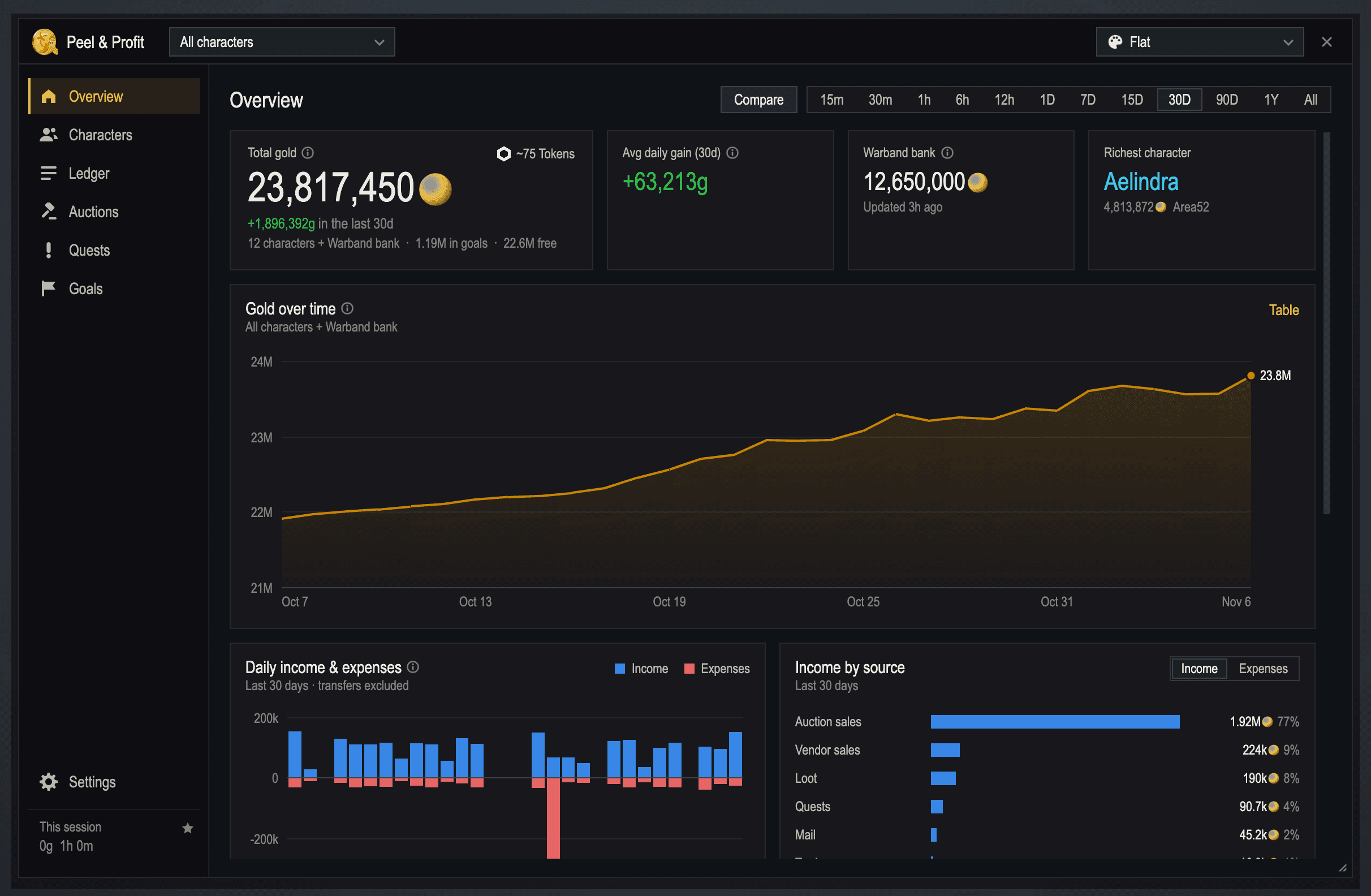
- 1Character filter. All characters, one character, or a group.
- 2Theme menu. Switch theme in one click.
- 3Close. Esc closes the window too.
- 4Tabs: Overview, Characters, Ledger, Auctions, Quests and Goals.
- 5Compare with the period before.
- 6Range: from the last 15 minutes to all time.
- 7Table shows the chart as numbers.
- 8Settings for everything.
- 9This session: gold gained and time played since you logged in.
- 10Resize from the bottom-right corner.
Open and close it
| Way | How |
|---|---|
| Slash command | opens or closes it. and do the same. |
| Open a tab | (or overview, characters, ledger, auctions, quests, settings). |
| Minimap button | Click to open, right-click for settings, shift-click to list your characters and their gold in chat. |
| Addon button | Peel & Profit is in the list under the AddOns button next to the minimap, so you can hide the minimap button and still open it. |
| Key binding | Bind Open or close the window in Esc > Options > Keybindings > AddOns. See key bindings. |
| Game options | Esc > Options > AddOns > Peel & Profit has buttons that open the window or its settings. |
| Data Broker bars | If you use Titan Panel, ElvUI or another Data Broker bar, add the Peel & Profit feed and click it. |
To hide the minimap button, untick Show the minimap button in Settings > Appearance, or type .
See one character or a group
To see only one character, pick them in the character filter at the top, or click their row on the Characters tab. The whole window follows the filter: totals, charts, the ledger, auctions and quests. To go back, pick All characters. Groups you've made (like Bank alts or Crafters) are in the same list; see Character groups and profiles.
Move and resize
Drag the title bar to move the window and drag the bottom-right corner to resize it. It keeps its place and size after a /reload. To make everything in it bigger or smaller, change Window scale in Settings > Appearance. The window also remembers the last tab you had open.
Tip
Most things in the window explain themselves: hover a title with a small (i) next to it for what it shows and the shortcuts that go with it. See info tips.Overview
Your total gold, how it changed, where it came from and what you spent.
The Overview tab answers three questions: how much gold you have, how it changed, and where it came from or went.
The tiles at the top
| Tile | What it shows |
|---|---|
| Total gold | All your gold: every character you haven't hidden, the Warband bank and gold waiting in the mail. Under it: the change over the range, how many characters it adds up, how much your savings jars hold (in goals) and your free gold. What counts explains the details. |
| ~N Tokens | Your total in WoW Tokens at today's price. Hover it for the Token's price details (see WoW Token). |
| Avg daily gain | How much your gold changed over the range, divided by its days. On 1D and shorter ranges it becomes Avg hourly gain. Goal ETAs use the same pace. |
| Warband bank | Its balance and when it was last recorded. It's updated whenever you open a bank. |
| Richest character | Your character with the most gold, and their realm. |
To print your total in chat without opening the window, type .
The cards
- Gold over time: your gold at the end of each day. On 7D and shorter ranges the line shows every change instead. Hover the line for the date, balance and the day's change. Click Table to see the same days as numbers, with income and expenses.
- Daily income & expenses: one bar up for income and one down for expenses per day. Transfers between your own characters are left out.
- Income by source: which categories brought gold in. Switch it to Expenses to see where gold went. The categories are the same as in the Ledger.
- Goals: your goals with their progress bars, once you have some (see Goals).
- Where you earn and WoW Token have their own sections: Where you earn, WoW Token.
Ranges
The buttons at the top right pick the time range for the whole tab: 15m, 30m, 1h, 6h, 12h, 1D, 7D, 15D, 30D, 90D, 1Y and All.
- 1D and shorter cover exactly that much time up to now. The gold chart shows clock times, the change under your total and Income by source cover the same window, and the average tile shows gold per hour. Cards built on daily totals show Today.
- New installs start on 1D. The first time your history reaches 7, 15, 30 or 90 days or a year, the range moves up to it on its own.
- The Overview remembers its range, Chart or Table, Compare and the card toggles after a reload.
The Ledger, Auctions and Quests tabs have their own range buttons (7D, 30D, 90D, 1Y, All), and remember them too.
Compare with the period before
To see if you're doing better than before, click Compare. A Compared with before card shows income, expenses and net for the range against the same number of days just before it, and your top items sold. The gold chart draws the period before as a faint line.
Tip
The card has two buttons: Previous period (the default) and Last month, which compares this month so far with the same days of last month. All time can't be compared with a previous period: pick a shorter range, or use Last month.Characters
Every character and the Warband bank: gold, share, this week and mail.
The Characters tab lists every character Peel & Profit has seen, plus the Warband bank, with their gold and their part of your total.
What the columns mean
| Column | Meaning |
|---|---|
| Character | Name, with a dot in their class color. |
| Realm, Groups, Level | Where they live, the groups you tagged them with, and their level. |
| Gold | Their gold when you last logged out (or now, for the character you're on). |
| Share | Their part of your total gold. |
| This week | How much their gold changed since the weekly reset. |
| In mail | Gold waiting in their mailbox. Red with ! when some of it expires within 3 days. Grey when mail isn't counted in your totals. |
| Last seen | When you last played them. |
Narrow windows hide some columns; make the window wider to see them all.
Show only one character
Click a character's row to filter the whole window to them. Click it again, or pick All characters in the filter at the top, to see everyone.
Hide, delete or group a character
Right-click a character for these options:
- Hide (leave out of totals): the character stays recorded but leaves your total, the charts and the list. To bring one back, click Show hidden above the list, right-click the character and pick Unhide.
- Delete...: removes the character and all of its history. It asks first, and it can't be undone. If you log in on that character again, it starts over.
- Groups: tick the groups the character belongs to, like Mains or Bank alts. See Character groups.
Tip
Renamed a character or moved realms? The old name stays as its own row with its history. Hide it to keep it out of your total, or delete it once you don't need its history.Guild banks
When you open a guild bank, its balance is listed under your characters for reference. It's never added to your total, because it isn't your gold. Your own deposits and withdrawals still show in the Ledger as Guild bank. To stop recording it, untick Guild bank in Settings > Data.
Prefer chat? lists every character and their gold.
What counts in your total
Which gold is added up, and which never is.
Your Total gold is all the gold you own on this account that Peel & Profit has seen. Here's what goes in, and what never does.
Your characters
Warband bank
Gold in the mail
Total gold
Guild bank
Hidden characters
Characters not seen yet
The Warband bank
The game only tells addons the Warband bank balance while a bank is open. Peel & Profit records it then, and the Warband bank tile shows when it was last updated. If the balance changed while Peel & Profit wasn't running (on another PC, for example), open a bank again to bring it up to date.
Gold in the mail
Gold waiting in a mailbox is still yours, so it counts by default. Peel & Profit sees it when you open a mailbox on that character. When you mail gold to one of your own characters, it counts on their side right away, so moving gold between alts doesn't make your total dip. Only the postage is spent.
To leave mail out, untick Count gold waiting in the mail in your totals in Settings > Alerts & summaries. Mail gold still shows on the Characters tab, in grey.
Transfers aren't income
Mailing gold to your own characters, or moving it in and out of the Warband bank, changes who holds it, not how much you have. Peel & Profit spots these moves and records them as Transfer, so they never count as income or expenses. The same goes for an auction deposit while the auction is up: it comes back if the item sells. See categories.
Groups and averages
In Settings > Characters & groups you can leave a group (like Bank alts) out of the averages or the income and expenses of the All characters view. Their gold still counts in your total. See Character groups.Where you earn
Gold per hour by zone and activity: open world, dungeons, delves, the AH.
Where you earn, on the Overview tab, shows which zones and activities pay you the most for your time: gold earned, time spent there online and gold per hour.
Read the card
| Column | Meaning |
|---|---|
| Where | The zone, or the activity with the Activity button. |
| Earned | Income there in the range. Expenses aren't subtracted. |
| Time | Time you spent there online. |
| Gold/hr | Earned divided by time: what an hour there is worth. |
Switch between Zone and Activity at the top right of the card. Activities are Open world, Dungeons, Raids, Delves, Scenarios, PvP and Auction House. Click a column name to sort by it.
Make it useful
- Pick a longer range (30D or 90D) at the top of the Overview to compare farming spots fairly. A single lucky drop can make one short visit look great.
- Pick a character or group in the filter to see where that character earns.
- Auction sales always count under Auction House, wherever you collect the mail. Its time is the time the Auction House window was open, so its gold per hour is what your selling sessions earn.
Note
Only gold earned since you installed Peel & Profit is tagged with a zone. Time away from the keyboard isn't counted, except in combat and instances, where the game doesn't tell addons whether you're away.WoW Token
The Token's price over time, and your gold counted in Tokens.
Peel & Profit follows the WoW Token's gold price on your region's market, and counts your gold in Tokens.
The WoW Token card
The card on the Overview tab shows the current market price, when it was last updated, how it changed over the range, and a chart of the price. The price is checked when you log in and every two hours while you play, and each day's low, high and last price are kept for the chart.
Your gold in Tokens
Next to Total gold on the Overview, ~N Tokens tells you how many Tokens your gold would buy right now. Hover it for the Token tooltip: the market price, when it was updated, the change over the last 7 days, the 30-day low and high, and how many Tokens your gold buys.
The login summary in chat adds your total in Tokens too (see Alerts and summaries). Buying or selling a Token for gold shows in the Ledger as WoW Token.
Ledger
Every gold change, sorted into income and expenses.
Every time your gold changes, Peel & Profit works out why and records it in the Ledger: a sale, loot, a repair, a flight and so on. The Ledger tab adds it all up.
Income, expenses and net
The tiles at the top show your Income, Expenses and Net (income minus expenses) for the range you pick at the top right: 7D, 30D, 90D, 1Y or All. Under them, two cards break income and expenses down by category. Transfers between your own characters and held auction deposits are left out of all of these, and the line under the tiles says how much was left out.
Click Compare next to the range buttons to compare with the period before: the tiles show the earlier amounts and the category cards get a vs before column.
Find a transaction
The Transactions list shows every gold change, newest first. To narrow it down:
- Type in Search to find an item, a quest, a character or a category by name.
- Pick in the dropdown: All categories, only Income, only Expenses, Transfers & held deposits, or one category.
- Pick a character or group in the filter at the top of the window.
The totals above always cover the whole range, whatever the list shows.
Reading the rows
| You see | It means |
|---|---|
| 4 changes | Changes of the same kind within a few seconds (selling a stack of items to a vendor) merged into one row. The amount is exact. |
| x20 after an item | How many items the sale or purchase was for. |
| A grey row | A transfer or a held deposit: it moved gold but isn't income or an expense. |
| Untracked change | Gold that changed while Peel & Profit wasn't running, found when you logged back in. |
How long rows are kept
Single transactions are kept for 90 days by default, to keep your saved data small. Daily totals per character and category are kept forever, so charts and totals never change. To keep more, change Keep transactions in Settings > Data to 180 days, 1 year or Forever. When the list is shorter than the range, a note above it says so.Income and expense categories
What each category means, and why transfers never count.
Every gold change goes into one category. Each category is either income, an expense, or neither: a transfer.
Income
Expenses
Transfers
Income
| Category | Counts as | What it is |
|---|---|---|
| Auction sales | Income | Money from auctions that sold, after the 5% AH cut. Recorded when you take it from the mail. |
| Vendor sales | Income | Selling items to a vendor. |
| Loot | Income | Gold looted from mobs, chests and containers. |
| Quests | Income | Gold from quest rewards. Each quest is also listed on the Quests tab. |
| Income | Gold another player mailed you. AH money and gold from your own characters aren't counted here. | |
| Trade | Income | Gold another player gave you in a trade. |
| Guild bank | Income | Gold you took out of a guild bank. |
| WoW Token | Income | Selling a WoW Token for gold. |
| Other | Income | Gold that came in from something Peel & Profit couldn't place. If you see it often, tell us what you were doing. |
Expenses
| Category | Counts as | What it is |
|---|---|---|
| Auction purchases | Expense | Items bought on the AH. Outbid money that comes back lowers it. It's also the cost of the item when you sell it later. |
| AH deposits lost | Expense | Deposits the game kept because an auction expired or you cancelled it. |
| Vendor purchases | Expense | Buying from a vendor. |
| Repairs | Expense | Repairing your gear. |
| Expense | Gold you mail to other players, and postage. | |
| Trade | Expense | Gold you gave another player in a trade. |
| Flight paths | Expense | Paying for a flight path. |
| Transmog | Expense | Changing your appearance at the transmogrifier. |
| Barber | Expense | The barber shop. |
| Guild bank | Expense | Gold you put into a guild bank. |
| WoW Token | Expense | Buying a WoW Token with gold. |
| Other | Expense | Gold spent on something Peel & Profit couldn't place. |
Transfers and held deposits
| Category | Counts as | What it is |
|---|---|---|
| Transfer | Not counted | Gold mailed between your own characters, and in or out of the Warband bank. |
| AH deposit held | Not counted | The deposit on an auction that's still up. It comes back if the item sells, or becomes AH deposits lost if not. |
| Untracked change | Not counted | Gold that changed while Peel & Profit wasn't running, for example if you played with it turned off. |
How Peel & Profit knows
The game only tells addons that your gold changed, not why. Peel & Profit looks at what you were doing at that moment: which window was open (vendor, mailbox, Auction House, bank, trade), what you just clicked, and what you looted. A few seconds of the same kind of change are merged into one row in the Ledger.Quests
Gold per quest, gold per hour and world quests with gold up now.
The Quests tab records the gold every quest pays you and how long it took, so you can see which dailies, weeklies and world quests are worth your time.
Your quests
| Column | Meaning |
|---|---|
| Type | World quest, Daily, Weekly, Calling, Repeatable or One-time. |
| Done | How many times you turned it in, in the range. |
| Gold each | The gold it paid you. |
| Time | The median time between accepting and turning it in, counting only time online. Times over 6 hours aren't used. |
| Gold/hr | Gold each divided by time, so short quests rank high. Switch to Gold/min with the buttons above the table. |
| Last done | When you last turned it in. |
By default the table shows Repeatable quests: world quests, dailies, weeklies, callings and other quests you can do again. Switch to All quests to include one-time quests that paid gold. Search and the type filter narrow it down, and the tiles above show your quest gold, the average per quest, your best gold per hour and the quest you did most.
Note
A quest needs to be accepted and turned in while Peel & Profit is running to get a time. Quests turned in without one still count their gold.World quests up now
The card at the bottom lists the current expansion's world quests that reward gold right now, sorted by gold, with their zone and time left. Click one to track it. If the list is empty, open the world map once, then press Refresh.
Auction profits
Profit per item after the AH cut, cost basis, deposits and sell-through.
The Auctions tab shows what you actually make on the Auction House: profit per item after the AH cut and what the items cost you, deposits you lost, and how often your auctions sell.
Sales are recorded when you collect the money from your mailbox, so open the mailbox on each character that sells.
Most profitable items
Revenue
Cost
Deposits lost
Profit
| Column | Meaning |
|---|---|
| Sold | How many you sold in the range. |
| Avg price | Average price per item, before the AH cut. |
| Revenue | What you received: sale prices minus the AH cut. |
| Cost | What the items cost you, from the average price you paid on the AH. Farmed means you never bought any, so they cost nothing. |
| Profit | Revenue minus cost minus deposits lost on this item. |
| Margin | Profit as a share of revenue. |
| 14d price | The market price over the last 14 days. |
Click an item to see its price history, or star it to add it to your watchlist.
Deposits and sell-through
- Deposits held: deposits on your auctions that are still up. They come back when the auctions sell, so they're not an expense yet.
- Deposits lost: deposits the game kept because an auction expired or you cancelled it. These count as an expense.
- Sell-through: the share of your ended auctions that sold: sold / (sold + expired + cancelled).
Your auctions by item, lower on the tab, lists everything you've posted with how often it sold, expired or was cancelled, sorted by deposits lost. Use it to spot items that keep coming back unsold.
Tip
Pick a character in the filter at the top to see one seller only, and use the range buttons (7D to All) for a season or a single week.Prices, scans and tooltips
Full AH scans, where item prices come from, and item tooltips.
Peel & Profit needs item prices for item values, profit, the watchlist and alerts. It takes them from TradeSkillMaster or Auctionator if you use them, and from its own Auction House scans.
Where prices come from
1. TradeSkillMaster
2. Auctionator
3. Peel & Profit scans
4. Vendor price
For each item, Peel & Profit asks the sources in this order and uses the first one that knows the item. You don't need TSM or Auctionator: without them, your own scans and the vendor price are used. The order is fixed. Settings > Prices & scanning lists it under Item values and marks the sources you don't have as not installed.
What "market price" means
Peel & Profit's own market price is the price at which the cheapest 15% of the quantity listed is reached. That way a few very cheap listings don't drag it down. It keeps one price a day per item, from full scans and from your AH searches.
Full Auction House scans
A full scan reads every listing on the Auction House at once and saves today's market price for each item. To run one, open the Auction House and click Full scan under its window, or type . A progress bar shows while it reads, and the game stays smooth.
- Blizzard allows one full scan about every 15 minutes, and the first results can take around 30 seconds to arrive.
- To scan without clicking, tick Scan automatically when the AH opens, at most every in Settings > Prices & scanning and pick how often (2 hours by default).
- You don't always need a full scan: watched items get a quick price check each time you open the Auction House, and any search you make for an item Peel & Profit follows is saved too.
Note
If a scan says the Auction House sent no answer, another addon may have run a full scan in the last 15 minutes. Wait a bit and try again.Item tooltips
Hover an item you've sold or that has a price, and its tooltip gets a Peel & Profit line: the market price, your average sale price and how many you've sold. Items linked to a goal also show the goal's progress (see Goal icons). To turn the price line off, untick Add market price and your sales to item tooltips in Settings > Prices & scanning.
Watchlist and price alerts
Follow item prices and get told when one crosses your price.
Put the items you farm, craft or flip on your watchlist to follow their price every day, and set an alert to be told when one gets cheap or expensive.
Add an item
Any of these works:
- On the Auctions tab, click + Add on the Watchlist card and shift-click the item, or type its name or item ID.
- Click the star next to an item in any table on the Auctions tab.
- Type and shift-click the item into chat after it. The same command removes it again.
Watched items get a quick price check every time you open the Auction House, so their history fills in even without full scans. To remove one, right-click it and pick Remove from watchlist.
Price history
Click any item (on the watchlist or in Most profitable items) to open Item prices: its daily market price over the last 90 days, with your own sales as dots. Under the chart: the current price, the 7-day average, the 30-day range and how many were listed when the latest price was seen.
Price alerts
To be told when an item crosses a price:
Right-click the item on the watchlist and pick Set price alert...
Or click + New alert on the Price alerts card.Pick Below or Above, and type a price per item
Like45g,45g 50sor1.2k. The dialog shows the market price now.Click Save alert
When the market price crosses your price, you get a chat line, a pop-up and a sound. Alerts are checked while the Auction House is open, after watchlist price checks and full scans, at most once an hour per item and direction.
From chat:
/gt alert [item] below 45gorabove 45gsets an alert (shift-click the item in)./gt alert [item] offremoves the item's alerts.- on its own lists your alerts.
Tip
The alert sound can be turned off in Settings > Alerts & summaries; the chat line and pop-up stay.Goals
The four kinds of goals, the goal cards and how to manage them.
Goals keep you pointed at something: a mount, a stack of herbs, or a number to hit every week. Each goal shows its progress, and most show an ETA at your current pace.
Four kinds of goals
| Kind | Use it to | More |
|---|---|---|
| Gold I have | Reach an amount of gold. Spending lowers your progress. | Gold I have goals |
| Save from earnings | Fill a savings jar with a share of what you earn. No gold moves. | Savings jars |
| Earn every day/week/month | Hit a target each period, with a streak and a history. | Repeating goals |
| Items | Gather or sell items, or just track them. | Item goals |
Create a goal
Open the Goals tab and click + New goal
Pick a kind at the top of the editor
The fields change to fit it.Give it a name and a target
Type amounts the short way or in full:250k,1.5m,2b,2,000,000or1,234g 56s. A plain number is gold.Optional: an icon, a deadline and a bar style
See Goal icons and Progress bar styles.Click Create goal
To keep a goal on screen while you play, click Pin on its card (see Goal widgets). Goals also show on the Overview tab.
Change, pause or finish a goal
- Edit on a card opens the editor again. The up and down arrows change the order.
- The ··· menu has the rest. What's in it depends on the kind: Pause and Resume, Mark as spent and Move gold to another goal... for savings jars, End goal (keep history) for repeating goals, Move to Completed for the others, and Delete....
- A paused goal is dimmed and doesn't count anything until you resume it.
Finished goals move to the Completed list at the bottom of the tab, with their history. From there, Restore puts a goal back at the bottom of your list, and Delete removes it for good.
When you reach a goal
The first time a goal reaches its target you get a toast, a sound and a chat line. Click the toast to open the Goals tab. Repeating goals say Goal met this week (or today, this month) once per period.
What's an ETA?
Gold goals show how long the rest will take at your pace over the last 30 days (or since tracking started, if that's shorter). If you haven't gained gold lately, there's no ETA. Savings jars use their share of your earnings, and item goals use what you gathered or sold.Gold I have goals
Reach an amount of gold, with an ETA and an optional deadline.
A Gold I have goal is the simplest: reach an amount of gold. It follows your real balance, so spending lowers your progress.
The fields
| Field | What to put in |
|---|---|
| Target | The amount you want to have, like 250k or 1.5m. Start it with a plus to aim for more than you have now: +100k means 100k more than today. The bar then starts at 0 and counts your gain. |
| Counts | Whose gold: Total gold (all characters you haven't hidden plus the Warband bank, and mail gold when that's on), one character, or the Warband bank. |
| Deadline | Optional. A date (2026-12-31 or 12/31) or a length from today (30d, 6w, 3m, 1y). Leave it empty for no deadline. |
Reading the card
- Remaining: how much is still missing.
- ETA: how long that takes at your pace over the last 30 days, like ETA ~48 days at +63.2k/day.
- With a deadline: the days left, and on track if your pace gets you there in time, or needs X/day if you have to speed up. After the date it says Overdue.
Note
A Total gold goal leaves out groups you've marked Averages in Settings > Characters & groups when it works out your pace. Their gold still counts toward the goal.Tip
Want to save a part of what you earn instead of watching your whole balance? Use a savings jar. Moving gold to an alt or the Warband bank never changes a jar.Savings jars
Added in 1.0.0-beta6Save a share of what you earn, without moving any gold.
A savings jar (Save from earnings) fills with a share of what you earn, like putting 20% of every sale aside for a mount. It's a plan for your gold: nothing is moved or locked in game.
You earn
You spend
Net profit
The jar gets
With Income only, spending is ignored: the jar would get 20% of 10,000 = 2,000. Moving gold to an alt or the Warband bank changes nothing.
Make a jar
On the Goals tab, click + New goal and pick Save from earnings.
| Field | What it does |
|---|---|
| Target | How much the jar should hold. |
| Counts | Whose earnings fill it: Total gold or one character. The Warband bank doesn't earn gold of its own. |
| Share of earnings | How much of what you earn goes in, from 1 to 100%. |
| Earnings | Net profit takes spending off. Income only never goes down when you spend. |
| Start at | Gold you already count toward the jar, like 30k. It can't be more than your free gold. |
| Count from | Now, the Last weekly reset, or A date. Earlier dates use your ledger history. |
| Simulated | Just tally earnings, don't set gold aside (see below). |
The jar's card
The card shows what the jar holds against its target, the share and earnings it counts, and when it started counting. Its ETA uses your share of the last 30 days' earnings. What all your jars hold together is shown at the top of the Goals tab and on the Overview as in goals; see Free gold.
When you buy the thing you saved for, open the jar's ··· menu and pick Mark as spent. The jar stops holding the gold and moves to Completed. To shift some of a jar into another one, pick Move gold to another goal...: one goes down, the other goes up, and no gold moves in game.
Simulated jars
Tick Simulated for a jar that only keeps score. It tallies its share of what you earn but doesn't set gold aside, so it never lowers your free gold and is never short. A losing day adds nothing, so it never goes down. To start a new run, pick Reset to 0 in its ··· menu; each run is kept in its history.
Tip
A simulated jar at 100% of Income only is a handy "how much did I make since..." counter.Free gold and short jars
Added in 1.0.0-beta6What's left after your jars, and how to fix a jar that's short.
Your savings jars hold part of your gold on paper. Free gold is what's left for everything else.
All is well
Then you spend 800k of it. The jars still hold 300k, but only 200k is left to cover them:
Where you see it
The top of the Goals tab shows three numbers: Total gold (all your gold; jars never lower it), Held by savings jars, and Free gold. The Overview's Total gold tile shows the same as in goals and free. Simulated jars hold nothing, so they don't change these.
When a jar is short
Jars count gold you have. If you spend gold a jar was holding, so that a character (or all your gold) has less than its jars hold, the jars are short. You'll see a toast and a chat line, a banner on the Goals tab, and an amber short line on each card. Widgets show it too.
Fix it with Resolve
Click Resolve on the banner and pick one:
| Option | What happens |
|---|---|
| Take it from the jars | Lowers the short jars by the missing amount. Evenly by default, or the bottom of the list first (Settings > Goals > Shortfalls take from). |
| Move the short part to another goal | Lowers these jars and adds the amount to a jar that has the gold, so the progress isn't lost. |
| Withdraw from the Warband bank | Takes the missing gold out of the Warband bank into this character. Open the Warband bank on this character first. The Ledger shows it as a transfer. |
| Count total gold instead | Switches these jars from one character to Total gold. They keep what they hold; later earnings come from all your characters. |
| Leave it | Keeps the amounts. The cards keep an amber short line until you earn it back, and the banner hides until it changes. |
Tip
Don't want the toast? Untick Shortfall alert in Settings > Goals. The banner and card lines stay.Earn every day, week or month
Added in 1.0.0-beta6Goals that start over each period, with streaks and history.
An Earn every day/week/month goal sets a target for each period, like 350k profit a week. It starts over every period and keeps a streak and a history of hits and misses.
Make one
On the Goals tab, click + New goal and pick Earn every day/week/month.
| Field | What it does |
|---|---|
| Repeat | Daily, Weekly or Monthly. |
| Target | What to earn each period. |
| Counts | Total gold or one character. |
| Earnings | Net profit (income minus spending) or Income only. |
| Period starts | Default follows Settings > Goals. Or pick At the daily reset, At the weekly reset, At an hour I pick or On a day and hour I pick. Times are your computer's local time. |
Reading the card
- What you earned this period against the target, and the time left.
- on pace if this period's rate so far gets you there, or needs X/day if you have to speed up.
- Streak: periods met in a row. The dots show the last few periods: green for met, red for missed.
- History lists finished periods with what you earned and the target they had. A paused period shows as Paused and doesn't break the streak.
When weeks and days start
By default weekly goals start at your region's weekly reset (Tuesday in the Americas, Wednesday in Europe) and daily goals at the daily reset. To change that for every goal that uses the default, open Settings > Goals, change Weeks start or Days start and click Apply.
Note
Changing the start asks which goals should move. A moved goal's current period ends at the new start and is saved to its history; unchecked goals keep the old start.Item goals and trackers
Added in 1.0.0-beta6Gather or sell items: one item, a list or a whole category.
Item goals count items instead of gold: one item, a hand-picked list, or a whole category like Herbs. Aim for a quantity gathered or for gold from sales, or pick No target to just track the stats.
Make one
On the Goals tab, click + New goal and pick Items.
| Field | What it does |
|---|---|
| Items | Shift-click items into the box, drop them on it, or type an item ID, an item name or a category name and press Enter. Or pick a Category from the list: Herbs, Metal & Stone, Cloth, Leather, Enchanting, Cooking and more. A category replaces the items, and an item replaces the category. |
| Current expansion only | For a category: count only this expansion's items. |
| Characters | All characters, or one. The Warband bank doesn't gather items. |
| Measure | Quantity gathered, or Gold from sales (AH sales after the cut, plus vendor sales). |
| When | Once, Daily, Weekly, Monthly, or No target for a tracker with stats only. |
| Target | How many, or how much gold. |
What counts as gathered
Gathered means looted, crafted (milling, prospecting and disenchanting too), opened from containers, or given as quest rewards. Taking items from the mail, the bank or the Warband bank, buying from vendors and AH purchases never count, so moving a stack around doesn't inflate your numbers.Names work for items the game has seen this session; shift-clicking always works. Gathered items count from when you installed the version with item goals (1.0.0-beta6); sales go back as far as your ledger.
Stats on the card
Item goal cards have a Stats row you can switch between 1D, 7D, 30D, 60D, 90D and All:
| Stat | Meaning |
|---|---|
| Gathered | Looted, crafted and quest rewards in the range. |
| Sold | How many sold: AH sales and vendor sales. |
| Gold from sales | What the sales brought in: AH sales after the cut, plus vendor sales. |
| Avg price | Gold from sales divided by how many sold. |
| Value today | What the items gathered in the range are worth now, at today's prices. |
On the item's tooltip
Hover an item that one of your item goals counts, anywhere in the game, and its tooltip shows the goal and its progress:
To turn these lines off, untick Item tooltips in Settings > Goals.
Goal icons
Added in 1.0.0-beta6Pick an icon, or link an item to show the goal on its tooltip.
Give each goal an icon so you can tell them apart at a glance. The icon shows on the goal's card, its widget, the Overview and the toast when you reach it.
Pick an icon
Edit the goal (or start a new one) and click the square next to Icon
Choose a page at the top of the picker
- Suggested: a handpicked set of our icons in ready-made colors.
- Peel & Profit: 60 icons of our own. Pick a color (gold, silver, green, blue, purple, red, teal, brown, orange, or each icon in its own colors) and whether they sit on a colored Tile.
- Bananas: 191 bananamojis, 11 of them animated (they play on the card, the widget and the toast). Type in the search box to find one by name.
- Game icons: every macro icon in the game. The mouse wheel flips pages, or type a page number and press Enter.
Click an icon, then save the goal
Goals without an icon show their kind's icon on a tile.
Link an item
Saving for a mount you buy from a vendor, or farming a reagent? Link the item instead of picking an icon. To link one, click the box next to the icon and shift-click the item, drag the item onto the icon, or type its item ID.
- The goal uses the item's icon, and hovering the icon shows the item's tooltip.
- The item's own tooltip, anywhere in the game, gets a Goal: line with the goal's progress.
Tip
Game icons have no tooltip of their own. If you want the item's tooltip on hover, link the item. To hide the Goal: lines on item tooltips, untick Item tooltips in Settings > Goals.Session tracker and HUD
Gold gained this session and your gold per hour, on screen.
The session tracker shows what you've earned since you logged in on this character, and your gold per hour. Keep it on screen with the session HUD while you farm.
The Current session card
At the bottom of the Goals tab: how long you've played, gold gained, gold per hour, your top source, and a chart that fills in as the session goes on. The same numbers show at the bottom left of the main window under This session.
- Gold gained comes from the Ledger, so moving gold to the Warband bank or mailing it to an alt doesn't count.
- A
/reload, or logging back in within 15 minutes, keeps the same session. - To start over, click Reset or type .
The session HUD
Click Show HUD on the card, or type , to put a small session tracker on your screen. Drag it where you want it; it stays there after a reload.
- Lock (click-through): the HUD lets your clicks go through to the game. Its lock icon stays clickable, so click it again to unlock. Or type .
- Reset session, Open Peel & Profit and Hide do what they say.
Tip
The HUD can hide or fade by itself in combat, instances, pet battles and cinematics: see Visibility. On a Data Broker bar (Titan Panel, ElvUI), the Peel & Profit Session feed shows the same numbers.Goal widgets
Pin goals on screen, grouped or as separate frames that snap together.
Pin a goal to keep its progress bar on screen while you play: how far along you are, what's left, and the ETA at your current pace.
Pin a goal
On the Goals tab, click Pin on a goal's card. Click it again (it says Pinned) to take the goal off the screen. Pin as many goals as you like.
Grouped or separate
Switch with the Grouped and Separate buttons at the top of the Goals tab, in Settings > Goal widgets, or with and .
| To | Grouped | Separate |
|---|---|---|
| Move | Drag the header. | Drag the widget. Drop it next to another to snap them together; hold Shift while dragging to pull one out. |
| Reorder | Drag a goal's title up or down. | Place them where you like. |
| Resize | Drag the bottom-right corner. | Drag the bottom-right corner. Snapped widgets resize together. |
Lock, minimize and reset
- Lock (the padlock, Lock widgets on the Goals tab, or ): widgets become click-through, so they never get in the way of your clicks. Their lock and minimize buttons still work. There's a key binding for it too.
- Minimize shrinks a goal to a single bar with its icon; + expands it again. The grouped box can minimize all of its goals at once.
- Reset layout in Settings > Goal widgets (or ) puts every widget back where it started.
- Right-click a widget to give it its own bar style, different from the goal's card (see Progress bar styles).
Background, snapping and combat
Background sets how see-through the widgets are (text and bars stay fully visible). Snapping turns snapping off if you'd rather place widgets freely. By default the widgets fade to 30% in combat and hide in pet battles and cinematics; change that in Visibility.
Note
Widget positions and layout belong to your profile, so characters with their own profile can have their own layout.Progress bar styles
Added in 1.0.0-beta6Restyle goal bars with presets or the style editor, and share styles.
Goal progress bars can look however you like: pick a ready-made preset, or change the fill, texture, border, text, tick marks and animations in the style editor with a live preview.
Presets
| Preset | Look |
|---|---|
| Theme | Today's look. Follows the theme. |
| Glossy | Shiny fill, soft shadow |
| Minimal | Thin, no border |
| Classic WoW | Status bar texture, gold border |
| Neon | Gradient, glow, pulse |
| Parchment ink | Ink on paper, ticks |
| Traffic light | Red, amber, green as it fills |
Where a style applies
| For | Set it in |
|---|---|
| Every bar | Settings > Progress bars > Default style. Goal cards, Overview rows and widgets use it unless they have their own. |
| One goal | The goal editor's Bar style: pick a style, or Customize... just for that goal. |
| One widget | Right-click the widget: Same as the goal card, Pick a style, or Customize... |
A style you changed shows its preset's name with (changed). Reset to preset in the editor undoes your changes.
The style editor
Open it with Edit... in Settings > Progress bars, Customize... in a goal's editor, or . Its sections:
- Fill: solid, a gradient, or a color by progress (like red, amber, green), the texture and opacity, a color for when the goal is reached, the hatched part for a short savings jar, the background, and bar heights.
- Border and shadow: square, rounded or pill corners, a border, a drop shadow or glow.
- Text: what's written on the bar (goal name, amount, percent, left to go, ETA, time left), where, and in which font, weight, size and outline.
- Marks: tick marks (quarters, half, tenths or your own) and a spark at the end of the fill.
- Animation: smooth fill, gain and loss flashes, a shine when the goal is reached, a pulse near the target, moving stripes, hue shift and a breathing spark.
The live preview updates as you change things. Use Try it: Gain, Loss and Reach goal to see the animations.
Save and share a style
In the editor, click Save as style... and name it
It's now in every Bar style list.In Settings > Progress bars > Saved styles, click Copy share string
Send the string (it starts with!PP-BAR1!) to a friend.To add someone's style, paste it into Saved styles and click Import
Or type/gt bar importfollowed by the string.
Motion, fonts and textures
- Reduce motion turns every bar animation off. Bars stand still in combat unless you tick Animate in combat.
- Fonts: the game's fonts, five that come with Peel & Profit (Inter, Roboto Condensed, Bebas Neue, JetBrains Mono, Montserrat), and fonts and textures other addons share through LibSharedMedia (ElvUI, Details!, WeakAuras and others bring them). Inter, Roboto Condensed, JetBrains Mono and Montserrat come in six weights, from X-Thin to X-Bold: pick one under Weight in the editor's Text section. Fonts with one weight show a (?) there instead.
To use your own font or texture file:
Make a folder Interface\AddOns\PeelAndProfit_Media and put the file in it
Fonts:.ttfor.otf. Textures:.tgaor.blp, sizes like 256 x 32. The folder is separate, so addon updates never delete your files.Restart the game
The game only finds new files after a full restart, not/reload.Type the file name under Fonts and textures in Settings > Progress bars, and click Add
Then pick it in the style editor (Fill > Texture, Text > Font). A wrong name says Not found.
Note
If a style uses a font or texture that's missing (say, from an addon you removed), the bar falls back to the theme font or the Flat texture.Alerts and summaries
Login summary, mail expiry warnings, goal toasts and Data Broker text.
Peel & Profit tells you about the things you'd want to know without opening the window: what changed while you were away, gold about to expire in the mail, and goals you reach.
Every alert
| Alert | When | Turn it off |
|---|---|---|
| Since your last login | A few seconds after you log in: how much gold you gained or lost, your sales and your top seller since your last login on any character, plus your total. Quick relogs (under an hour) skip it, and the next one covers the whole time. | Settings > Alerts & summaries > Login summary |
| Mail gold expires soon | At login and when you open a mailbox, if gold on any character expires within 3 days. | Settings > Alerts & summaries > Mail expiry |
| Goal reached | The first time a goal reaches its target (once per period for repeating goals). Toast, sound and chat line. | Always on |
| Savings jars are short | When you spend gold your jars were holding (see Free gold). | Settings > Goals > Shortfall alert |
| Price alert | When an item crosses a price you set (see Price alerts). | Remove the alert; the sound is in Settings > Alerts & summaries |
Click a toast to open the window on the right tab. Toasts fade on their own after a few seconds.
Settings
Data Broker text
If you use an info bar that supports LibDataBroker, like Titan Panel, ElvUI, ChocolateBar or Bazooka, add the Peel & Profit feed to it. Data Broker text in Settings > Alerts & summaries picks what it shows: Total gold, Session (gold gained or lost since you logged in, and gold per hour) or Both. Hover it for every character's gold, and click it to open the window. There's also a separate Peel & Profit Session feed.
Themes
Pick one of 45 themes, or build your own from 8 colors.
Peel & Profit comes with 45 themes, from a plain dark look to bananas and parchment. A theme changes the main window, the goal widgets and the session HUD at once, with no reload.
Switch theme
- Click the theme menu at the top right of the window and pick one.
- Or open Settings > Appearance and click a tile. All, Dark and Light filter the list.
- Or type (the start of the name is enough). on its own lists every theme in chat.
Faction follows the character you're playing: Horde or Alliance colors, and Flat for Pandaren who haven't picked a side. Banana themes show their banana in the title bar; tick Faint banana watermark to see it faintly behind the tabs too. Every theme keeps text readable.
Every theme
Peel & Profit 7
- Flat
- Blizzard
- Parchment(light)
- Void
- High contrast
- High contrast light(light)
- Faction
Bananas 14
- Classic Banana
- Golden
- Boonana
- Karate
- Inferno
- Mad Banana
- Frost
- Arcane
- Fel
- Hazard
- Pirate
- Groovy
- Hallow's End
- Winter Veil
BananaMojis palettes 18
- Classic Banana
- Classic Banana Light(light)
- Banana Split
- Banana Split Light(light)
- Extra Fresh
- Extra Fresh Light(light)
- Blue Flame
- Blue Flame Light(light)
- Strawberry Orange
- Strawberry Orange Light(light)
- Midnight Plantain
- Midnight Plantain Light(light)
- Matcha
- Matcha Light(light)
- Banana Foster
- Banana Foster Light(light)
- Cotton Candy
- Cotton Candy Light(light)
More themes 6
- Dracula
- Catppuccin Mocha
- Catppuccin Latte(light)
- Tokyo Night
- Solarized Dark
- Solarized Light(light)
Dark Light
Seasonal themes
Tick Seasonal banana themes in Settings > Appearance (it's off by default) and the Hallow's End theme takes over from Oct 18 to Nov 1, and Winter Veil from Dec 16 to Jan 2. Your own theme stays saved: picking any theme goes back to it.
Build your own theme
Open Settings > Your themes
Click Start from current theme to begin from the theme you use, or start from the default colors.Pick 8 colors
Background, Raised background, Text, Primary, Primary dark, Text on primary, Secondary and Link. Click a swatch to open the game's color picker. Tick Light theme for a light window.Name it and click Save and use
Peel & Profit works out every other color and keeps text readable. If it had to adjust a color, it says so.
Your themes are saved for all your characters. Share gives you a string to send to a friend, and Import adds one they sent you. Theme strings from Peelometer work too.
Note
The theme is saved in your profile. To use a different theme on one character, give that character its own profile (see Profiles).Display, privacy and visibility
Gold format, window scale, streamer mode and when widgets hide.
Change how amounts are written, how big the window is, hide your gold for streaming, and choose when widgets get out of the way.
Gold and number formats
| Setting | Choices |
|---|---|
| Gold format (Appearance) | 4,812,350g (default), 4.81M, or 4,812,350g 12s 40c with silver and copper. A few small spots, like the session HUD and chart axes, always use the short form so they fit. |
| Number format (Display & privacy) | How thousands are separated: 1,234,567, 1.234.567 or 1 234 567. It starts from your game language. |
| Window scale (Appearance) | From 70% to 130%. It sizes the main window only, not the widgets or the HUD. |
Streamer mode
Streaming, or sharing a screenshot? Streamer mode shows *** instead of every gold amount, on every character. Percentages, trends, chart shapes and goal progress stay visible, so the window still makes sense.
- Tick Hide gold amounts in Settings > Display & privacy, or type (it also takes
onandoff). - Bind a key to it in Esc > Options > Keybindings > AddOns > Peel & Profit.
- While it's on, an indicator shows in the title bar next to the theme menu. Click it to show amounts again.
Visibility: hide or fade widgets
Settings > Visibility decides what the goal widgets and the session HUD do in combat, in instances, in pet battles and in cinematics: Show, Fade (30% visible) or Hide. When more than one situation applies, the strongest rule wins: Hide, then Fade, then Show.
| Situation | Goal widgets | Session HUD |
|---|---|---|
| In combat | Fade | Show |
| In instances | Show | Show |
| In pet battles | Hide | Hide |
| In cinematics | Hide | Hide |
The defaults on a fresh install.
Tip
Want widgets out of the way in dungeons and raids? Set In instances to Hide for goal widgets and leave combat on Fade.Character groups and profiles
Tag characters into groups, and give characters their own setup.
Groups sort your characters into sets like Mains or Bank alts, so you can look at just them. Profiles decide which characters share a setup: theme, window and widget layout.
Character groups
Three groups are ready to use: Mains, Bank alts and Crafters. To put a character in a group:
Open the Characters tab and right-click the character
Under Groups, tick the groups they belong to
A character can be in several groups.
Then pick the group in the character filter at the top of the window to see only those characters: their total, charts, ledger, auctions and quests.
In Settings > Characters & groups you can add, rename and delete groups, and leave a group out of parts of the All characters view:
| Tick | Effect in All characters |
|---|---|
| Averages | The average daily gain and goal ETAs ignore these characters. |
| Income & expenses | Their income, expenses, sales and quest gold are left out. Useful for bank alts that only move gold around. |
Either way, their gold still counts in your total. Groups are the same on all your characters.
Profiles
A profile holds your settings: theme, window position and size, widget layout and display options. Every character starts on the Default profile, so changing a setting changes it everywhere. Your gold data, goals and history are always shared by all your characters, whatever the profile.
| To | Do this in Settings > Profiles |
|---|---|
| Give one character its own setup | Click Use its own profile. It starts from the defaults; use Copy from to bring yours over. |
| Make a profile to share | Type a name under New profile and click Create and use. Then pick it as the Active profile on other characters. |
| Copy settings | Pick a profile in Copy from. It replaces the active profile's settings. |
| Go back to the shared setup | Click Use Default. |
| Start fresh | Reset profile puts the window, widgets and theme back to their defaults. It asks first. |
Switch from chatAdded in 1.0.0-beta7
opens a small picker with every profile. The one this character uses is marked In use; click another to switch to it. New profile... at the bottom asks for a name, makes the profile and switches to it. Esc or the x closes the picker without changing anything.
/gt profile NAME switches straight to a profile you already have; capitals don't matter, so /gt profile default works. If no profile has that name, it asks first: Create makes it and switches to it, Cancel leaves everything as it was. gives this character its own profile.
Backup, import and your data
Export a backup or CSV, import with merge or replace, and what's stored.
Everything Peel & Profit records stays on your PC. Export it to keep a copy or move it to another PC, and import a backup or a spreadsheet when you need it.
Export a backup
Type /gt export, or click Export... in Settings > Data
Pick Backup string or CSV (spreadsheet)
A backup string holds everything you tick: balances, transactions, sales and purchases, price history and watchlist, goals, quests, item counts, and your settings and layout. CSV holds balances and transactions, for a spreadsheet.Click Create export, then copy it
PressCtrl+C(Cmd+Con a Mac) and paste it somewhere safe, like a text file. The game stays responsive while it works.
Import a backup or CSV
Type /gt import, or click Import... in Settings > Data
Paste the string or the CSV text into the box, and click Check data
Nothing changes yet. You see, for each kind of data, how much is in the file, how much is new and how much is already here.Decide what to do with characters this account doesn't know
Import as a new character, import it hidden, skip it, or Merge into one of your characters (for example after a rename or a realm transfer).Pick Merge (skip duplicates) or Replace everything, then click Import
Merge adds what's new and skips what you already have. Replace deletes the ticked kinds of data on this account first.
Changed your mind?
Click Undo import. It works until you/reload or log out.A CSV needs at least date, character and amount_copper columns. An export also has time, realm, category, detail, item_id and quantity. Rows it can't read are counted and skipped.
Two WoW accounts?
Each account is tracked on its own. To combine them, export from one and import into the other with Merge.Your data
Peel & Profit keeps everything in its saved variables file, in your World of Warcraft folder under WTF/Account/<your account>/SavedVariables/PeelAndProfit.lua. The game writes it when you log out or /reload. Nothing is ever sent anywhere by the addon.
| Setting (Settings > Data) | What it does |
|---|---|
| Keep transactions | How long single transactions stay in the Ledger list: 90 days (default), 180 days, 1 year or Forever. Daily totals per character and category are kept forever, so charts and history don't change. |
| Guild bank | Record guild bank balances when you open one (shown on Characters, never in your total). |
Old data is compacted automatically, so the file stays small and the game loads quickly. For automatic dated backups of this file, see the 1svc Addon Utils app.
Slash commands and key bindings
Every /gt command, and the key bindings you can set.
Type commands in the chat box. , and are the same command, so /peel total works just like /gt total. lists every command in chat.
[You]: /gt help
Peel & Profit: Commands (also work as /peel and /gold):
- /gt helpShow this list
- /gt versionShow the addon version
- /gt totalShow total gold
- /gt charsList characters and their gold
- /gt scanFull Auction House scan (AH must be open)
- /gt watchAdd or remove a watchlist item: /gt watch [item]
- /gt showOpen the window (optionally a tab: overview, characters, settings ...)
- /gt settingsOpen settings
- /gt themeSwitch theme: /gt theme frost (no name lists every theme)
- /gt minimapShow or hide the minimap button
- /gt sessionShow or hide the session HUD (also: session lock, session unlock, session reset)
- /gt resetStart a new session (/gt reset session)
- /gt widgetsGoal widgets: lock, unlock, reset, grouped, separate
- /gt barProgress bar styles: import a shared style, or edit the default
- /gt exportBack up your data (export string or CSV)
- /gt importRestore a backup or import a CSV
- /gt streamerToggle streamer mode (hides gold amounts)
- /gt profilePick or switch the UI profile: /gt profile [name | own]
- /gt alertPrice alert: /gt alert [item] below|above 45g (or off)
- /gt testerTurn tester mode on or off (feature checklist, error capture)
- /gt welcomeShow the welcome card again
- /gt optionsOpen the page in Esc > Options > AddOns
- /gt bugReport a bug (saved for 1svc Addon Utils, or copy a link)
- /gt featureRequest a feature (saved for 1svc Addon Utils, or copy a link)
- /gt outboxShow reports waiting for 1svc Addon Utils
- /gt changesShow new features and the changelog
- /gt checklistOpen the tester checklist (/gt checklist widget toggles the widget)
Every command
Click a command to copy it. Where a command takes a word after it (like /gt widgets lock), the words are listed under it. For an item, shift-click it into the chat box after the command.
| Command | What it does |
|---|---|
Opens or closes the window. | |
Show this list | |
Show the addon version | |
Show total gold | |
List characters and their gold | |
Full Auction House scan (AH must be open) | |
Add or remove a watchlist item: /gt watch [item] Usage: | |
Open the window (optionally a tab: overview, characters, settings ...) Tabs: | |
Open settings | |
Switch theme: /gt theme frost (no name lists every theme) | |
Show or hide the minimap button | |
Show or hide the session HUD (also: session lock, session unlock, session reset) Add: | |
Start a new session (/gt reset session) Add: Usage: | |
Goal widgets: lock, unlock, reset, grouped, separate Add: Usage: | |
Progress bar styles: import a shared style, or edit the default Add: Usage: | |
Back up your data (export string or CSV) | |
Restore a backup or import a CSV | |
Toggle streamer mode (hides gold amounts) Add: | |
Pick or switch the UI profile: /gt profile [name | own] Add: | |
Price alert: /gt alert [item] below|above 45g (or off) Usage: | |
Turn tester mode on or off (feature checklist, error capture) Add: | |
Show the welcome card again | |
Open the page in Esc > Options > AddOns | |
Report a bug (saved for 1svc Addon Utils, or copy a link) | |
Request a feature (saved for 1svc Addon Utils, or copy a link) | |
Show reports waiting for 1svc Addon Utils | |
Show new features and the changelog | |
Open the tester checklist (/gt checklist widget toggles the widget) Add: | |
Same as /gt changes. |
Tip
/gt show takes a tab's name or its start: /gt show ledger opens the Ledger and /gt show char opens Characters. A name it doesn't know opens nothing and lists the tab names in chat. /gt theme finds a theme by the start of its name, so /gt theme frost is enough. /gt profile on its own opens a small profile picker; with a name it switches to that profile (in any case), and asks before it makes a new one.Key bindings
Peel & Profit adds three key bindings. None of them has a key until you set one. To set them, open the game menu with Esc, then Options > Keybindings > AddOns > Peel & Profit.
| Key binding | Default key |
|---|---|
| Open or close the window | Not set |
| Lock or unlock goal widgets | Not set |
| Streamer mode on or off | Not set |
All settings
Every setting in the Settings tab, with what it does and its default.
Every setting is in the Settings tab at the bottom left of the main window. To jump there, type , right-click the minimap button, or open Esc > Options > AddOns > Peel & Profit and click Open Peel & Profit settings. Changes apply right away; there's no Save button.
Most settings belong to your profile: characters that share a profile share them, and a character with its own profile has its own (see Settings > Profiles). Settings marked account-wide are the same on every character. Your gold data, goals and history are always shared by all your characters.
Note
Hover a setting's name, or the small (i) icon next to it, in game to see the same explanation as here.Gold marks the default on a fresh install.
Appearance
Colors and fonts for every Peel & Profit window. Faction follows the character you're playing: Horde or Alliance colors (Flat for Pandaren who haven't picked a side). Saved per profile.
Banana themes show their banana in the title bar. BananaMojis palettes come in dark and light. Every theme keeps text readable (4.5:1 contrast).
Credits: banana art and BananaMojis palettes, bananamojis.com. Dracula (Zeno Rocha), Catppuccin, Tokyo Night (enkia) and Solarized (Ethan Schoonover) are MIT-licensed palettes.
- Flat
- Faint banana watermarkOffBanana themes draw their banana faintly behind the tabs. Other themes have none.
- Seasonal banana themesOffHallow's End (Oct 18 - Nov 1) and Winter Veil (Dec 16 - Jan 2) switch the theme while the holiday runs. Your theme stays saved: pick any theme to go back to it.
Applies to the main window, goal widgets and the session HUD.
- › /gt theme NAME switches theme from chat
How gold amounts are written. A few small spots, like the session HUD and chart axes, always use the short form so they fit.
- 4,812,350g4.81M4,812,350g 12s 40c
Size of the main Peel & Profit window. It doesn't change goal widgets or the session HUD.
- 100%70% to 130%
- › Drag the window's bottom-right corner to change its width and height
Peel & Profit is also in the addon compartment (the AddOns button by the minimap), so you can hide this button and still open it.
- Show the minimap buttonOn
- › /gt minimap shows or hides the button
Your themesPick 8 colors and Peel & Profit works out the rest, pushing every text color to readable contrast. Saved for all your characters. Share a theme as a string; strings from Peelometer work too.
- Text box “My theme”
- Save and use button
- Start from current theme button
- New button
- Share button
- Text box “Paste a theme string”
- Import button
Progress barsHow goal progress bars look: on the Goals tab, the Overview and goal widgets. A goal (its editor) or a widget (right-click it) can have its own style.
The style every goal card, Overview row and goal widget uses, unless the goal or widget has its own. Pick a preset or one of your saved styles; Edit... changes colors, texture, font, border, marks and animations.
- ThemeGlossyMinimalClassic WoWNeonParchment inkTraffic light
- Edit... button: Change the default style: colors, texture, font, border, marks and animations.
Your own bar styles: made with Save as style in the style editor, or imported from a share string. Goals and widgets on a style you delete go back to the default style.
- Text box “Paste a !PP-BAR1! string”
- Import button
- › /gt bar import STRING adds a shared style
Smooth fill, flashes, shine, pulse, stripes and the rest. In combat, bars stand still unless you turn on Animate in combat (the widgets fade then anyway).
- Reduce motion (no bar animations)Off
- Animate in combatOff
What the style editor can use: the game's fonts and textures, the ones that come with Peel & Profit, SharedMedia from your other addons, and your own files.
- Text box “MyFont.ttf”
- Add button
Interface\AddOns\PeelAndProfit_Media\
Put the file in that folder first, then restart the game: /reload doesn't find new files.
- › Your own files go in that folder (make it if needed). Fonts: .ttf or .otf. Textures: .tga or .blp, sizes like 256 x 32.
- › Addon updates never delete the folder.
- › /gt bar import STRING adds a shared style
Display & privacy
How thousands are separated in gold amounts: commas, dots or spaces. Used in every window, tooltip, widget and chat line. Until you pick one, it follows your game language.
- 1,234,5671.234.5671 234 567
Shows *** instead of gold amounts everywhere, on every character (this setting is account-wide). Percentages, trends, chart shapes and goal progress stay visible, so you can stream or share screenshots without showing your gold.
- Hide gold amounts (shows *** instead)Off
- › /gt streamer turns it on or off
- › Key binding: Streamer mode on or off
All unbound until you set them: open or close the window, lock or unlock goal widgets, and streamer mode on or off.
Set them in Esc > Options > Keybindings > AddOns.
Data
How long single transactions (each sale, repair, loot and so on) stay in the Ledger tab. Older ones are deleted to keep your saved data small. Daily totals per character and category are kept forever, so charts and history don't change.
- 90 days180 days1 yearForever
Daily totals are always kept.
The balance is read when you open the guild bank, so it can be out of date. It's never added to your total because it isn't your gold. Your own deposits and withdrawals still show in the Ledger.
- Track the guild bank balance (shown on Characters, never in your total)On
Export copies all your data to a text string (keep it safe, or move it to another PC) or to CSV for spreadsheets. Import restores an export string or reads a CSV, and lets you merge or replace what you have.
- Export... button
- Import... button
- › /gt export and /gt import open the same window
Characters & groupsGroups are tags for characters, like bank alts or a farming team. Pick a group in the character filter at the top of the window to see only them.
Tick a box to keep a group's characters out of that part of the All characters view. Their gold still counts in your total.
- Text box “New group”
- Add group button
- AveragesOffThe average daily gain and goal ETAs in All characters ignore these characters.
- Income & expensesOffAll characters leaves out their income, expenses, sales and quest gold. Useful for bank alts that only move gold around. Their gold still counts in your total.
- AveragesOffThe average daily gain and goal ETAs in All characters ignore these characters.
- Income & expensesOffAll characters leaves out their income, expenses, sales and quest gold. Useful for bank alts that only move gold around. Their gold still counts in your total.
- AveragesOffThe average daily gain and goal ETAs in All characters ignore these characters.
- Income & expensesOffAll characters leaves out their income, expenses, sales and quest gold. Useful for bank alts that only move gold around. Their gold still counts in your total.
- › Tag characters on the Characters tab: right-click a character > Groups
Prices & scanning
Reads every Auction House listing at once to price the items you own and sell. Blizzard allows one full scan about every 15 minutes, and the first results can take around 30 seconds to arrive. With TSM or Auctionator installed you rarely need it.
- Scan automatically when the AH opens, at most everyOff
- 2 h1 h to 24 h
- › Full scan button: under the Auction House window
- › /gt scan (with the Auction House open)
Adds a Peel & Profit line to item tooltips: the market price, your average sale price and how many you've sold.
- Add market price and your sales to item tooltipsOn
Where item prices come from, best first. Each item uses the first source that has a price for it. Grey sources aren't installed.
TradeSkillMaster (not installed) > Auctionator (not installed) > Peel & Profit scans > vendor price
Alerts & summaries
Price alerts tell you when an item's market price drops below or rises above a price you set. They're checked while the Auction House is open, whenever a scan or search brings a new price, at most once an hour per item.
- Play a sound when a price alert fires (set alerts in the Auctions tab)On
- › /gt alert [item] below 45g (shift-click the item into chat)
A pop-up when you log in: how much gold you gained or lost, your sales and your top seller since your last login on any character. Quick relogs (under an hour) skip it; the next one covers the whole time.
- Show what changed since your last loginOn
Gold and auction sales waiting in your mailboxes. Peel & Profit sees it when you open a mailbox on that character. Gold you mail to your own characters counts right away, so moving gold between alts doesn't dip your total.
- Count gold waiting in the mail in your totalsOn
Mail that expires with gold in it is returned or deleted, so collect it in time. The warning lists the characters with gold about to expire: at login, and when you open a mailbox (at most once an hour).
- Warn when mail gold expires in less than 3 daysOn
What Peel & Profit shows on info bars that support LibDataBroker, like Titan Panel, ElvUI or Bazooka. Session is the gold gained or lost since you logged in.
- Total goldSessionBoth
Titan Panel, ElvUI and other bars
Goal widgetsPin a goal on the Goals tab to show it on screen. Unlock the widgets to move or resize them; lock them so clicks go through to the game.
- Reset layout button: Moves every goal widget back to its starting place and size.
Grouped: every pinned goal in one box. Separate: one small window per goal, placed wherever you like.
- GroupedSeparate
- › Grouped: drag the header to move, a goal's title to reorder
- › /gt widgets grouped | separate
How see-through the widget background is. Text and progress bars stay fully visible.
- 90%0% to 100%
In the Separate layout, widgets snap to each other when you drop one close to another. Snapped widgets then move, resize and lock together.
- Separate widgets snap together when dropped near each otherOn
- › Hold Shift while dragging a widget to pull it out of its group
- › /gt widgets lock | unlock | reset
- › Key binding: Lock or unlock goal widgets
Goals
When a character (or all your gold) has less than its savings jars hold, Resolve > Take it from the jars lowers them by the difference. Evenly splits it; Bottom of the list first starts with the lowest goal on the Goals tab.
- EvenlyBottom of the list first
A savings jar is short when you spend gold it was holding, so your jars hold more than you have. This shows one toast and chat line when it happens, after you close the vendor, bank, mailbox or Auction House. Resolve on the Goals tab fixes it.
- Toast and chat line when a savings jar becomes shortOn
Goals with a linked item add a line to that item's tooltip anywhere in the game: the goal's name and progress.
- Show goals on the tooltips of items they're linked toOn
When weekly repeating goals start a new week, unless a goal picks its own start. The weekly reset is your region's (Tuesday in the Americas, Wednesday in Europe).
- At the weekly resetOn a day and hour I pick
- SundayMondayTuesdayWednesdayThursdayFridaySaturday (shown when it applies)
- 00:0000:00 to 23:00 (shown when it applies)
- Apply button (shown when it applies)
When daily repeating goals start a new day, unless a goal picks its own start.
- At the daily resetAt an hour I pick
- 00:0000:00 to 23:00 (shown when it applies)
- Apply button (shown when it applies)
VisibilityHide or fade the goal widgets and the session HUD in these situations. Faded means 30% visible. When more than one situation applies, the strongest rule wins: Hide, then Fade, then Show.
From the moment you enter combat until it ends. By default the goal widgets fade and the session HUD stays.
- Goal widgetsShowFadeHide
- Session HUDShowFadeHide
Inside dungeons, raids, delves, scenarios, battlegrounds and arenas. The open world and cities don't count.
- Goal widgetsShowFadeHide
- Session HUDShowFadeHide
During pet battles. Both are hidden by default, so they don't cover the pet battle buttons.
- Goal widgetsShowFadeHide
- Session HUDShowFadeHide
During cutscenes and in-game movies. Both are hidden by default.
- Goal widgetsShowFadeHide
- Session HUDShowFadeHide
ProfilesProfiles store window and widget positions, theme and display options. Gold data, goals and history are always shared by all your characters.
- Reset profile button: Puts the active profile's window, goal widgets and theme back to their defaults. Asks first.
The profile this character uses. Several characters can share one, so changing a setting changes it for all of them.
- Default
Gives this character a profile of its own, named after it, so its window, widgets and theme don't affect your other characters. It starts from the default settings; use Copy from to bring yours over.
- Use its own profile button
- Use Default button (shown when it applies)
Window, widgets and theme just for this character
- Text box “Profile name”
- Create and use button
Copies every setting from another profile into the active one, replacing what's there.
- › /gt profile opens a quick picker
- › /gt profile NAME switches (asks before making a new one)
Help
The welcome card is the short tour from your first login. Features & changelog lists what each version added and fixed.
- Show the welcome card button
- Features & changelog button
- › /gt welcome and /gt changes open them
Turn off once you know your way around. Hovering a setting's name still shows its tip. Applies to all characters.
- Show (i) icons that explain settings and controlsOn
A page in the game's own options with the version, the slash commands and a button that opens these settings.
Peel & Profit is also listed under Esc > Options > AddOns.
- › /gt options opens it
Write a bug report or feature request in game. Saved reports wait under Waiting to send; after /reload or logout they show up in the 1svc Addon Utils desktop app, where you check them and click Send. No app? The form can copy a link to the website form instead.
- Report a bug button
- Request a feature button
- Waiting to send button
- › /gt bug, /gt feature and /gt outbox open these windows
For testers: a feature checklist with notes and errors, caught Lua errors and a log of recent activity, all in one export for bug reports. Nothing extra is recorded while it's off.
- Feature checklist, Lua error capture and an activity logOff
- › /gt tester turns it on or off
Open the checklist in the Features & changelog window, export it as a test report for the website's bug form, or pin a small checklist widget on screen.
- Open checklist button (shown when it applies)
- Export button (shown when it applies)
- Show as widgetOff (shown when it applies)
- › /gt checklist opens it; /gt checklist widget shows or hides the widget
Clears every status, note and error, and the caught Lua errors. Asks first; you can also delete your own items. Export first to keep a copy.
- Reset checklist button (shown when it applies)
This list is generated from Peel & Profit 1.0.0-beta8, so it matches what the game shows. Defaults are what a fresh install has.
Features & changelog and info tips
See what's new after an update, and get help on any setting.
After an update, Peel & Profit shows what changed. And almost every setting and card explains itself when you hover it.
Features & changelog
When Peel & Profit has been updated, a chat line says so, and the Features & changelog window opens the next time you open the main window. To open it any time, type or click Features & changelog in Settings > Help.
- New features: what's new since the version you had before, with the biggest changes on top and every fix and improvement grouped by section. Try it buttons open the right tab.
- Changelog: the full history, every version.
- Hover a line and click the flag to report a problem with it: the in-game report form opens with that line linked (see Report a bug or idea).
The same notes are on the website's changelog page.
Info tipsAdded in 1.0.0-beta5
Small (i) icons next to settings, card titles and other controls explain what they do. Hover the icon, or the setting's name. Grey lines at the bottom of a tip list shortcuts, like Shift-drag or a slash command.
Tip
Know your way around? Untick Info icons in Settings > Help to hide the icons on all your characters. Hovering a setting's name still shows its tip.Report a bug or idea
From the website, or in game with /gt bug and /gt feature.
Found a bug, or have an idea? Tell us from this website or right from the game. Your addon and game versions are filled in for you.
From the website
Click Something wrong here? under any section of this wiki, or the bug icon in the top bar, to open the feedback panel. Pick a bug report or a feature request, describe it, and send it. You can attach screenshots.
From the gameAdded in 1.0.0-beta4
/gt bug or /gt feature
Save for Addon Utils
/reload or log out
/gt bug or /gt feature
Copy link instead
Website form
Type /gt bug (or /gt feature for an idea)
You can also use the buttons in Settings > Help.Fill in the form
A short title (6 characters or more) and what happened. Steps to make it happen and what you expected are optional but help a lot. For a feature: your idea and why it would help.Click Save for Addon Utils
The report waits in your saved data, under Waiting to send.Send it from the app
After your next/reloador logout, the report shows up in the free 1svc Addon Utils desktop app. Check it there and click Send.
No app? Click Copy link instead, copy the link and open it in your browser. The website's form opens with your versions filled in. What you typed in game isn't sent that way; the website form has the same fields.
Waiting to send
Saved reports are listed under Waiting to send (Settings > Help, or ). They show up in 1svc Addon Utils after a /reload or logout, where you check them and click Send; the app skips any it already sent. Delete them in game once they're sent. Up to 20 can wait, and reports older than 30 days are deleted on their own.
What gets sent
What you type, the addon and game versions and your game language, plus any errors or test report you tick. Never your character, realm or guild names.Good bug reports
Include the exact error text if you got a Lua error (the BugSack addon makes copying it easy) and what you did just before. In tester mode you can attach the errors Peel & Profit caught and your checklist export with one tick.Tester mode
A feature checklist with notes, caught errors and a test report.
Helping test Peel & Profit? Tester mode gives you a checklist of every feature to try, catches Lua errors, and puts it all in one report for us.
Turn it on
Tick the box on the Tester mode row in Settings > Help, or type . Nothing extra is recorded while it's off. It's the same on all your characters.
Use the checklist
Tester mode adds a Feature checklist tab to the Features & changelog window. Open it with or Open checklist in Settings > Help.
Try an item
Each one says what to do and what should happen.Set its status
Click the box for the next status (Works, Broken, Skipped, Other), or right-click it to choose.Add notes and errors
Click the item's text to write what you saw, paste an error, or attach one of the Lua errors Peel & Profit caught.
You can add your own items too. When an update changes an item's steps, it goes back to Not tried and keeps your old status in its history.
Show as widget (or ) puts a small checklist on your screen, so you can tick items off while you play. Drag it, resize it and lock it.
Send your results
Click Export for a Markdown report: every item with its status, notes and errors, the caught Lua errors, your addon list and recent activity (no character names). Paste it into the bug form on the website, where it's attached as a test report. Or tick Attach my test report in the in-game report form (see Report a bug or idea).
Heads up
Reports on the website are public, so don't paste anything private into notes. Reset checklist in Settings > Help clears every status, note and error and can't be undone: export first if you want a copy.1svc Addon Utils app
The optional desktop app: your gold on a big screen, backups, report sending.
1svc Addon Utils is a free, optional desktop app for Mac and Windows. It reads Peel & Profit's saved file, so you can see your gold outside the game. Peel & Profit works the same without it.
- Your data: total gold, the Warband bank, gold over time, characters, goals and recent transactions, on a big screen. Read-only.
- Sends your reports: bug reports and ideas you save in game with
/gt bugor/gt featureshow up in the app after your next/reloador logout. Check them there and click Send. - Backups: a dated copy of your Peel & Profit data each time the game saves it. Restore one while the game is closed.
- Tester tools: your checklist, caught Lua errors and recent activity, with a one-click test report.
The app only reads the saved file on your PC. It never runs addon code or changes game files, and nothing about your gold is uploaded.
Troubleshooting
Fixes for the most common problems.
Something not looking right? Start here.
My total is missing a character
Characters are added the first time you log in on them with Peel & Profit installed. Log in on that character once. If they're listed but not counted, they may be hidden: on the Characters tab, click Show hidden and right-click them > Unhide.
The Warband bank says Not recorded yet, or is out of date
The game only shares the Warband bank balance while a bank is open. Open any bank on any character and it's recorded.
My total looks too high
Gold waiting in the mail is counted by default, so collecting it doesn't change your total. To leave it out, untick Count gold waiting in the mail in your totals in Settings > Alerts & summaries. Guild banks are never counted. See What counts in your total.
I see an Untracked change in the Ledger
Your gold changed while Peel & Profit wasn't running, for example if you played with the addon turned off or on another PC without it. It's found when you log back in and isn't counted as income or an expense.
An auction sale is missing
Sales are recorded when you take the money from your mailbox. Open the mailbox on that character and collect it.
Full scan doesn't work
The Auction House has to be open. Blizzard allows one full scan about every 15 minutes, and scans by other addons count too, so if TSM or Auctionator just scanned, wait and try again. The first results can take 30 seconds.
The chart only shows a short time
Tracking starts when you install Peel & Profit; the game keeps no gold history. The range moves to 7D, 30D and longer on its own as your history grows.
A savings jar says it's short
You spent gold the jar was holding. Click Resolve on the Goals tab to fix it, or Leave it. See Free gold and short jars.
Icons, fonts or bar textures are missing after an update
Restart the game completely. New files only load on a full restart, not /reload. For your own fonts and textures, check the file name under Settings > Progress bars > Fonts and textures.
My widgets disappear in combat or in dungeons
That's the Visibility settings: widgets fade in combat by default. Change it in Settings > Visibility (see Visibility).
I can't click through to the game where my widgets are, or I can't move them
Lock the widgets to make them click-through, and unlock them to move them: the padlock on a widget, or . Lost a widget off screen? .
I get a Lua error
Please report it with the error text and your version (). fills the version in for you; see Report a bug or idea.
Tip
Still stuck? Use Something wrong here? below to tell us. If your data ever looks wrong after an update, your history is still in your saved file; a backup () before big changes never hurts.FAQ
Short answers to common questions.
Can it show gold from before I installed it?
No. The game doesn't keep a gold history, so tracking starts on install. If you have records in a spreadsheet, you can import them as CSV (see Import a backup or CSV).
Will it slow down my game?
No. Old data is compacted automatically, nothing heavy runs in combat, and full Auction House scans are read in small steps so the game stays smooth.
Do I need TradeSkillMaster or Auctionator?
No. Peel & Profit works on its own with its own scans. If either is installed, it uses their prices first (see Where prices come from).
Is my data sent anywhere?
Never. Everything stays in your own saved variables file on your PC. The optional 1svc Addon Utils app reads that file on your PC, and only sends the bug reports you choose to save for it.
Does it count my guild bank?
No. The guild bank balance is shown on the Characters tab for reference, but it isn't your gold, so it's never in your total. Your own deposits and withdrawals show in the Ledger.
Why doesn't moving gold to my alt show as an expense?
Gold moved between your own characters, or in and out of the Warband bank, is a Transfer: it changes who holds the gold, not how much you have. Only the postage is an expense.
I play on two WoW accounts. Can I combine them?
Each account is tracked on its own. Export from one and import into the other with Merge to combine histories.
Do savings jars lock my gold?
No. A jar is a plan for your gold: nothing is moved or locked in game. If you spend gold a jar was holding, the jar is marked short and you can fix it with Resolve.
Can each character have its own theme and widget layout?
Yes. Give the character its own profile in Settings > Profiles, or type /gt profile own. Gold data, goals and history stay shared.
It's a beta. Is my data safe?
Updates keep your history, and you can back it up any time with /gt export. If something looks wrong, report it with /gt bug, which fills in your version.
Which game versions does it support?
World of Warcraft Retail. Classic versions aren't supported.